Which iPhone 14 models have a SIM card slot?
Which iPhone 14 models have a SIM card slot depends on where you bought the phone, not on whether you have an iPhone 14, 14 Plus, 14 Pro, or 14 Pro Max.
Where it was bought
| Physical SIM tray | eSIM support | Dual SIM setup |
|---|
United States
| No tray | Yes — eSIM only | Two eSIMs
|
|---|
Outside the US (the UK, EU, Canada, Australia, most markets)
| One nano-SIM tray | Yes | Nano-SIM + eSIM, or two eSIMs
|
|---|
Mainland China
| Dual nano-SIM tray | No | Two nano-SIMs
|
|---|
Hong Kong and Macao
| Dual nano-SIM tray | No | Dual SIM with two nano-SIM cards
|
|---|
The configuration is the same across all four iPhone 14 versions. For example, an iPhone 14 Pro Max bought in the US has no physical SIM tray, while one bought in most other markets includes one. Apple also lists iPhone 14 models purchased in mainland China, Hong Kong, and Macao as supporting dual-SIM functionality with two physical nano-SIM cards.
The information about features in this article was last verified on the official Apple Support website, specifically their English-language sites, on September 16, 2026, and is subject to change.
Where is the SIM card slot on an iPhone 14?
On iPhone 14 models with a physical SIM tray, the SIM slot is on the left edge of the phone below the volume buttons. You can open it with the SIM ejector tool that came with the phone or a small paperclip. If you bought your iPhone 14 in the US, you won’t find a SIM tray or ejector pinhole on that edge. That makes a quick visual check one of the easiest ways to tell whether you have a US eSIM-only model.
If your iPhone does have a tray, follow the steps for removing a SIM card from an iPhone rather than forcing it open.
How can you tell if your iPhone 14 has a SIM tray?
Not sure whether your iPhone 14 uses a physical SIM, an eSIM, or both? A few quick checks will tell you in under a minute.
Look below the volume buttons on the left edge of the phone for a small pinhole.
Open “Settings” → “General” → “About” and check the model number.
Compare that number with Apple’s iPhone model list to see which market version you have.
Open “Settings” → “Cellular” and check whether a physical SIM line appears.
A US iPhone 14 model won’t show a physical SIM entry under “Cellular” because it uses an eSIM only. If you also need to check whether the phone can be used with another carrier, see how to tell whether your iPhone is carrier unlocked.
💡 Good to know: The iPhone 14 is one of many iPhones that support eSIM technology. Check the full list if you’re comparing models.
Why did Apple remove the physical SIM card slot?
Apple removed the physical SIM tray from US iPhone 14 models in September 2022 as part of its move toward eSIM technology. Apple has emphasized that eSIM technology may be more secure because it cannot be physically removed from a lost or stolen phone, and removing the physical slot frees up internal space. The change also lets an iPhone 14 use two active eSIM lines on the same device. For more on the practical differences, see our eSIM vs. physical SIM comparison.
What can you do if your iPhone 14 has no SIM tray?
If your iPhone 14 has no physical SIM tray, you can still connect to a mobile network using an eSIM. Instead of inserting a card, you activate the line digitally with a QR code or through your carrier’s app. US iPhone 14 models support two active eSIMs at the same time, giving you dual-SIM functionality to use a work and personal line together, or keep your home number active while using a separate travel data plan.
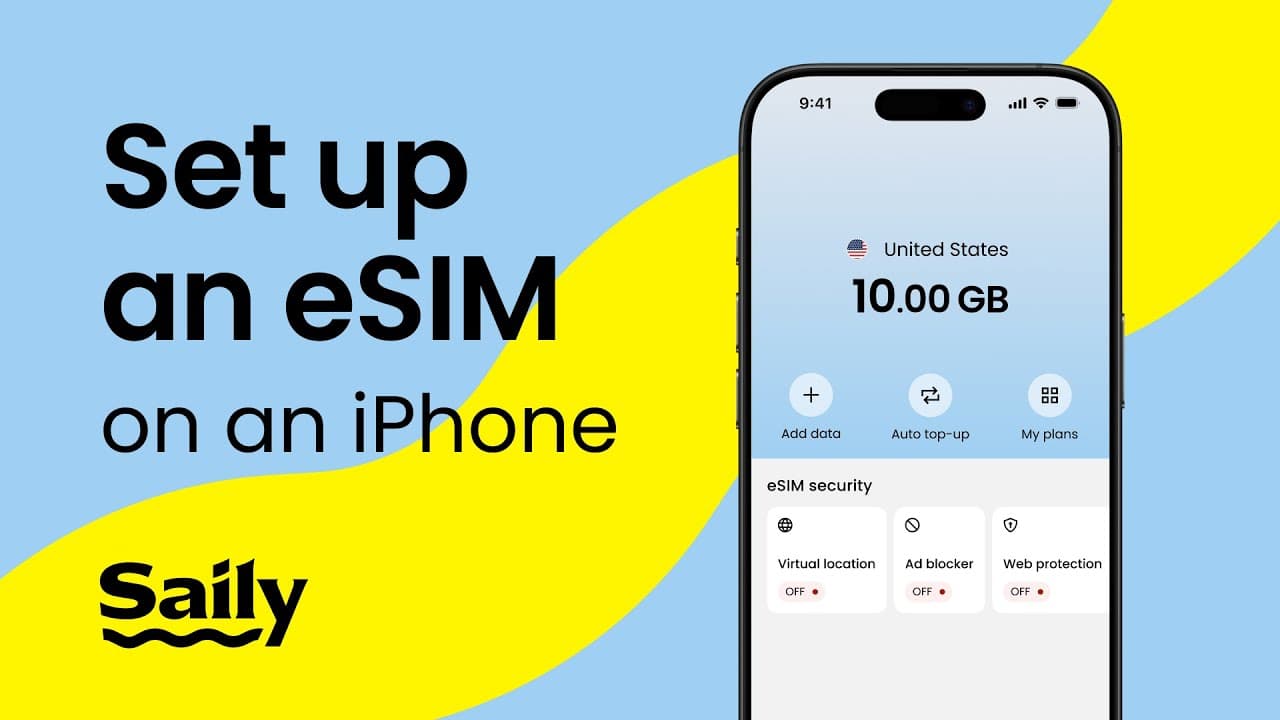
For setup details, see iPhone 14 eSIM support or follow the steps for installing an eSIM on an iPhone.
Can you use an iPhone 14 abroad without a SIM card?
You can use an iPhone 14 abroad without a physical SIM card by installing a travel eSIM over Wi-Fi before you leave. Then you can connect to mobile data when you arrive, without a SIM tray or a stop at a local SIM shop.
Saily works with eSIM-compatible devices and offers coverage in 200+ destinations. You can install the eSIM in the Saily app before your trip and use it alongside your existing home line with the iPhone 14’s dual-SIM functionality. You can also compare a Global eSIM plan or browse all Saily destinations before you travel. This setup works the same way on US eSIM-only iPhone 14 models and international versions with a physical SIM tray.
Choose a Saily data plan for your destination and set it up before departure so it is ready when you land. If you’re not sure how much data to buy, use Saily’s data usage calculator before your trip.
We do our best to keep everything accurate and up to date, but eSIM service provider prices, plans, and features can change quickly. If you spot something that seems outdated or incorrect, feel free to get in touch with us at [email protected] — we’d really appreciate the heads-up!