10 min read
Traveling only to discover your Holafly eSIM isn’t connecting can be frustrating. This comprehensive guide helps you pinpoint common causes (from device compatibility to expired plans, misconfigurations, or poor coverage) and shows how to fix them. We’ll also cover what to do if you accidentally delete your Holafly eSIM, and when it might make sense to consider a different eSIM solution.
Table of Contents
Most eSIM problems fall into a few buckets. The fixes below map to these causes so you can go straight to the steps that matter. This is just a quick overview. We go into more detail on what’s causing the issue, how to fix it, and what steps to take in the sections that follow. If you’re new to the world of eSIM technology, we recommend a primer — our guide explaining what an eSIM is.
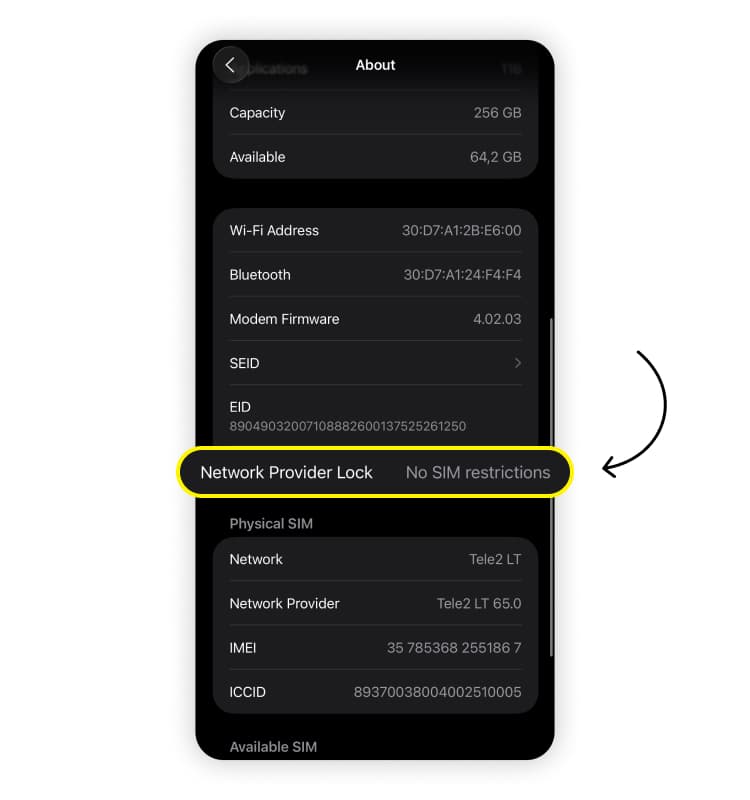
Some phones don’t support eSIM technology at all. Others support it but are locked to the original carrier, which blocks any third-party eSIM. On iPhone, check “Settings” → “General” → “About” → “Carrier lock.” You want to see “No SIM restrictions.” If it says “SIM locked,” ask your carrier to unlock the device before using Holafly.
Activation can stall if Wi-Fi drops during installation, if you have too many eSIM profiles installed, or if your device tries to reuse an old code. Use stable Wi-Fi to add the eSIM, free up an eSIM slot if your phone is full, and try manual setup with the SM-DP+ address and activation code Holafly should have sent you after buying your eSIM.
An incorrect APN blocks data even if you have the signal bars showing on your phone. Holafly’s APN is “Global.” If your phone didn’t automatically configure it, set or update the APN in your device’s cellular settings.
If QR scanning fails or never starts the download, enter the SM-DP+ address and activation code manually. Search for Holafly’s setup guides for iPhone, Pixel, Huawei, and other phones. They show exactly where to input these fields.
When a plan’s validity period ends or you use up the data, the service stops. You can only top up before expiry. Once your plan expires, you need to purchase a new plan.
No carrier can connect where there’s no signal. If you’re indoors, underground, or in a rural area, it’s possible you’re in a spot with no service. Moving to an area with a better signal, switching to 4G/LTE, or selecting a different local network manually often helps.
Older operating system builds or corrupted network settings can block a valid eSIM from functioning properly. A simple restart, OS update, or a network settings reset usually clears this.
When an eSIM refuses to connect, a clear checklist is much more useful than guesswork. The steps below follow a simple logic: First, check whether the device can use Holafly at all. Then confirm that the right line is active. After that, move into network resets and reinstallation. Work through the list in order. After each step, try opening a light website or a map. If data starts working again, the remaining steps are optional.
Before changing settings, confirm that the device can work with Holafly in the first place. An incompatible or carrier-locked phone will block third-party eSIMs.
On an iPhone
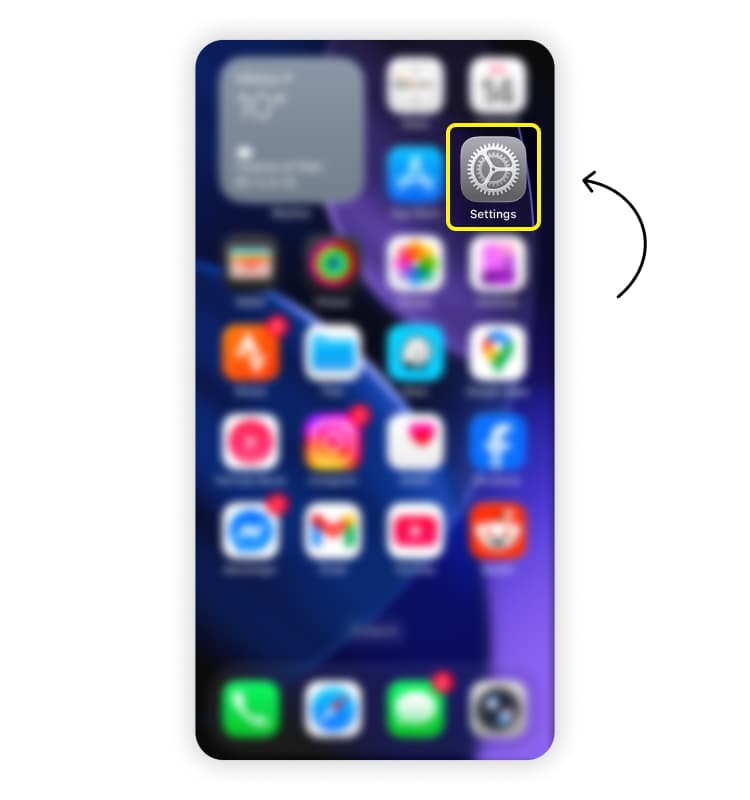
Go to “Settings”
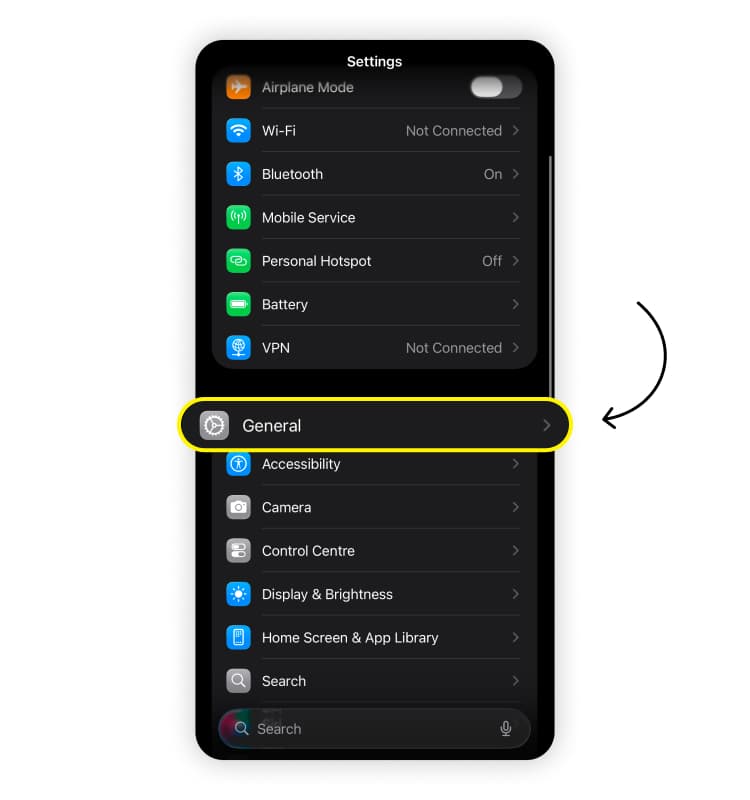
Tap “General”
Tap “About”
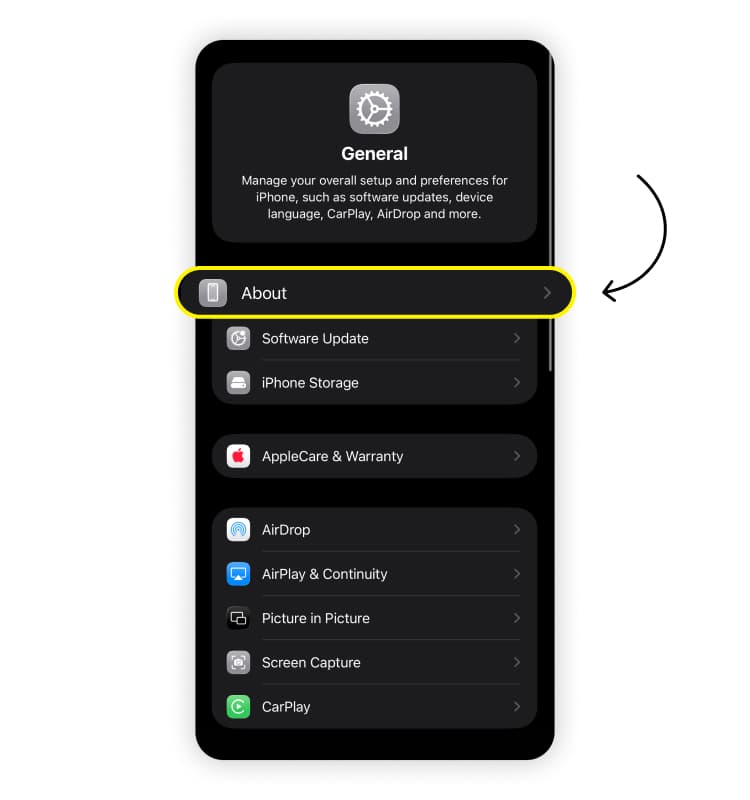
If it shows “No SIM restrictions” next to “Network provider lock,” that means your iPhone has no carrier restrictions and you can proceed to installing an eSIM.
If you want to find out which iPhones support eSIMs, read our detailed guide on eSIM support for iPhone devices.
On Android
Go to “Settings”
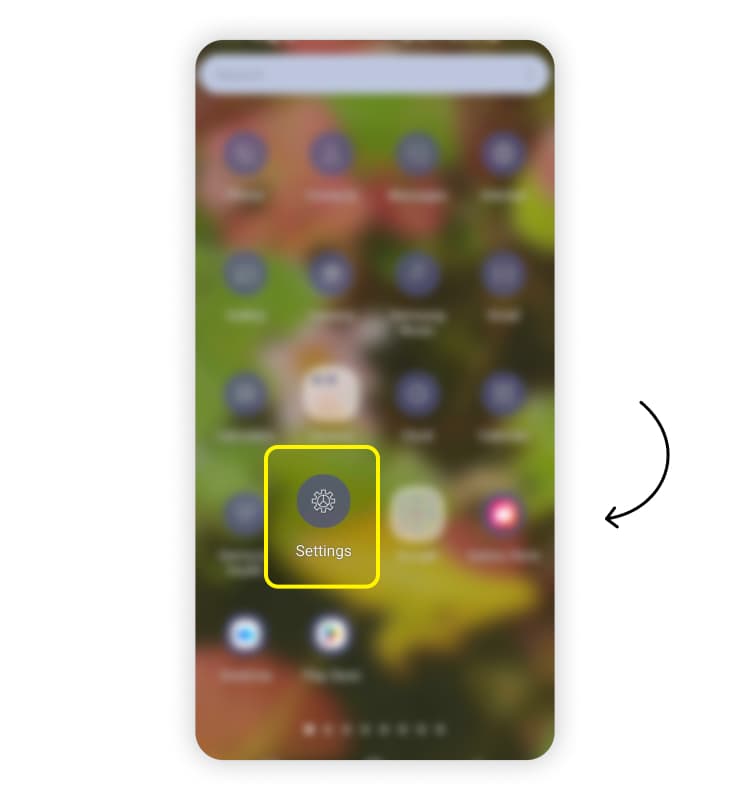
Tap “Network & internet” or “Connections”
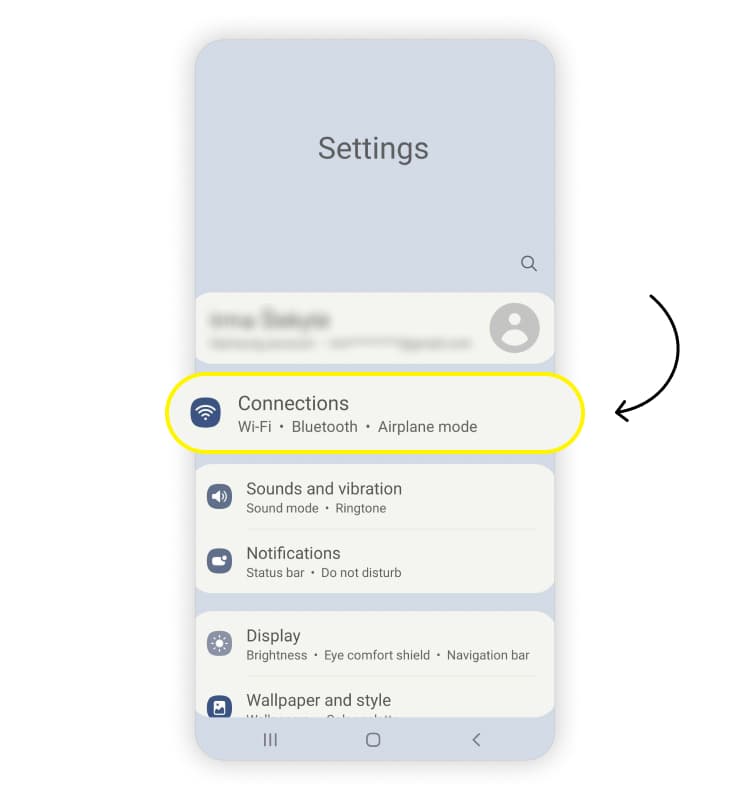
Tap “SIMs” or “SIM manager”
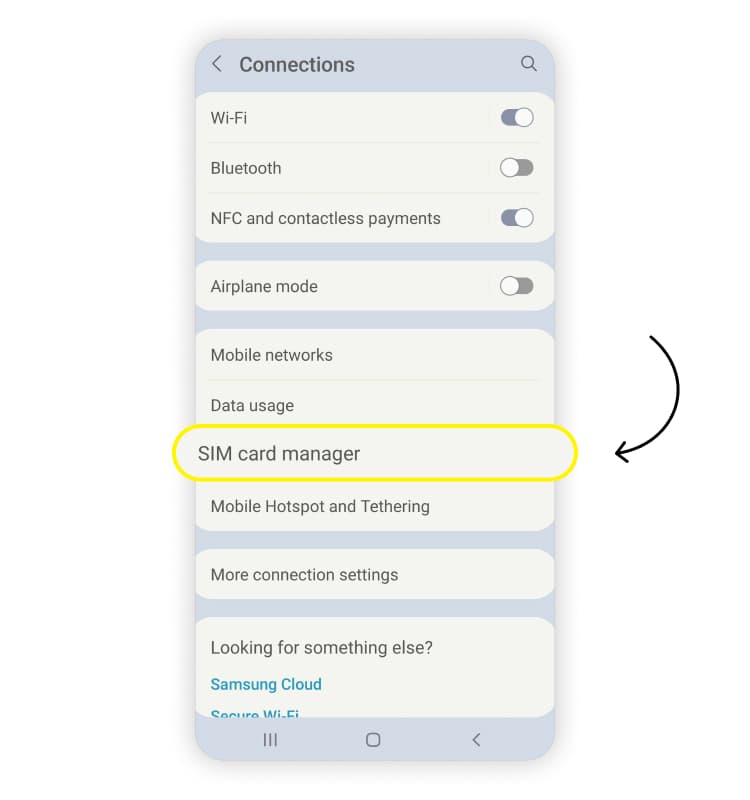
Check if the option “Add eSIM” is available.
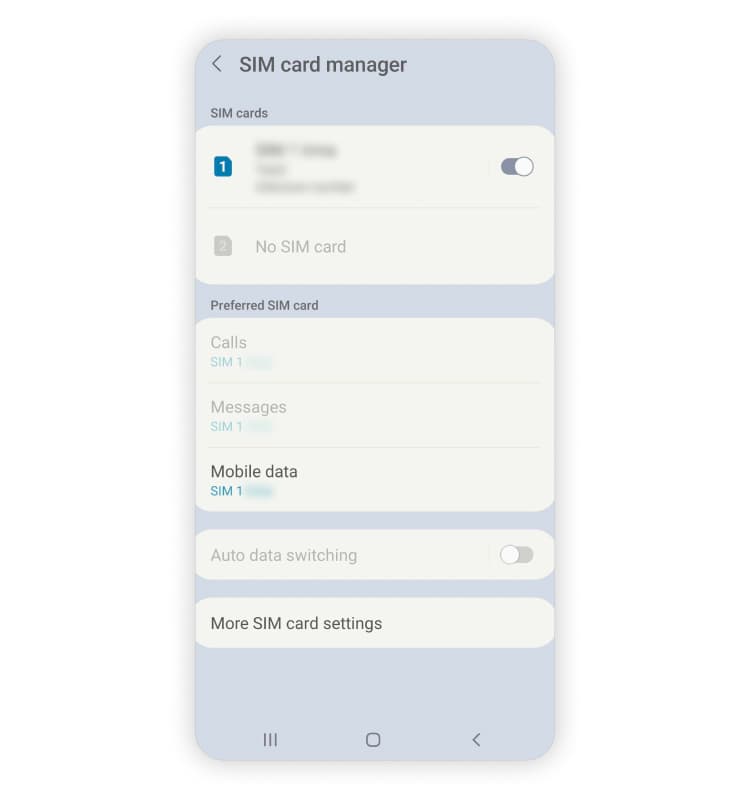
The screenshots provided are from an Android phone that doesn’t support eSIM technology. If you want to learn more about Android devices that support eSIMs, check out our list of eSIM-compatible phones.
The many “signal bars but no internet” problems come from the phone still using another SIM for data or from roaming being turned off.
On iPhone
Go to “Settings” → “Cellular.”
Tap “Cellular data” and select the Holafly line.
In the list, tap the Holafly plan.
Turn “Turn on this line” on if it is off.
Turn “Data roaming” on.
On Android
(Menu names vary between brands, so follow the structure rather than the exact wording.)
Go to “Settings” → “Network & internet” / “Connections” → “SIMs” / “SIM manager.”
Set Holafly as the “Mobile data SIM.”
Go to “Settings” → “Mobile networks” / “Cellular networks.”
Turn “Data roaming” to “On” for the Holafly SIM.
Test whether the data works by opening a light webpage once this is done.
A short connection reset often fixes temporary registration issues on the local network.
On an iPhone and Android
Open “Control center” or “Quick settings.”
Turn airplane mode on.
Wait about 10 seconds.
Turn airplane mode off again.
Restart the phone once.
When the phone turns back on, wait for it to connect and test whether you have an internet connection again.
If your phone shows signal bars, but apps or web pages will not load, the access point name may be missing or incorrect. Holafly uses the “Global” APN name.
On an iPhone
Go to “Settings” → “Cellular” or “Mobile service” → “Holafly.”
Tap “Cellular data network” or “Mobile data network.”
In the APN field under “Cellular data” or “Mobile data,” type “Global.”
Leave username and password blank.
Go back, then restart the phone.
If the “Cellular data network” / ”Mobile data network” option is not visible, APN fields are managed automatically by the carrier profile and this step can be skipped.
On Android
Go to “Settings” → “Mobile networks” / “Cellular networks.”
Tap “Access point names” (APN).
Select the Holafly APN if it exists, or create a new one.
Set “Name” to something recognizable (for example, “Holafly”).
Set APN to “Global.”
Save and select this APN, then restart.
Test your internet connection again after the restart.
Dual-SIM devices can sometimes route data through the wrong line without making it obvious, or you might encounter a bug that sends data through a different SIM even when everything is set correctly. Turning the other lines off can help clear these issues.
On an iPhone
Go to “Settings” → “Cellular” or “Mobile service.”
Under “Cellular plans” or “SIMs,” toggle other lines “Off” so that only Holafly remains active.
On Android
Go to “Settings” → “SIMs” / “SIM manager.”
Turn other SIM cards or eSIM profiles off for a short test period.
With only Holafly active, test data again. If it starts working, re-enable the other line later and keep Holafly set as the data line.
If the eSIM still does not work after these actions, support intervention is the next step. Sending clear screenshots makes this faster.
Prepare the following on the device:
“SIM” / “Cellular” screen showing the Holafly line turned on.
“Cellular data” (or “Mobile service”) screen showing Holafly selected as the data line and “Data roaming” turned on.
APN settings for the Holafly line (if visible), showing “APN: Global” or the current APN value.
Then contact Holafly via:
WhatsApp (number listed in its support pages).
Live chat in the Holafly app or on its website.
Email: [email protected]
Include the screenshots, your order number, destination country, and a short list of the steps you already tried. The support team can then check the eSIM status on its side and advise whether issuing a new profile or providing a refund is appropriate. If you’re troubleshooting on an Apple device, take a moment to review our eSIM not working on an iPhone guide, which covers many of the causes users encounter most often.
Losing access to an eSIM feels more final than dropping a plastic SIM on the floor. The profile sits inside the phone, and once it disappears, it might seem like you have no way to recover it. In practice, though, most Holafly eSIM problems after deletion or loss can be fixed as long as the plan is still active and the activation details are recoverable.
Deleting the eSIM profile removes the network settings and credentials from the device. The plan itself does not automatically cancel on Holafly’s side, which means it can usually be installed again.
Recover the QR code and activation details
Check the original email sent to you by Holafly as well as your Holafly account in the app or on the website. In the eSIM details view, you should see the QR code and the manual SM-DP+ and activation code.
Reinstall on the same phone
On an iPhone: go to “Settings” → “Cellular” / “Mobile service” → “Add eSIM” → scan the QR, or choose “Enter details manually” and paste the SM-DP+ address and activation code.
On Android: go to “Settings” → “Network & internet” / “Connections” → “SIMs” / “SIM manager” → “Add eSIM” → scan the QR or enter the activation code.
Then set Holafly as the data line and turn on data roaming.
Contact support if the code is no longer valid
If the old QR or code throws up an error, Holafly support needs to issue a fresh one. Reach it via WhatsApp, live chat, or [email protected] and mention that the eSIM was deleted while the plan is still within its validity window.
If you are not sure what actually happens when you remove an eSIM from your phone, you are not alone. We see the same questions come up again and again: “What does deleting an eSIM do?” and “If I delete my eSIM, can I get it back later?" That is why we put together a guide on what happens if you delete an eSIM. It walks through both scenarios in more detail.
When your device has been lost, or if you’ve replaced an old phone without uninstalling the eSIM from it, the ability to transfer the eSIM depends on Holafly’s reissue rules. As of November 17, 2025, this is how a Holafly eSIM reissue can unfold:
If you still have access to your old phone, remove the Holafly eSIM there (delete the eSIM in iOS or remove it in Android SIM manager), restart that phone, then install the eSIM on the new device using the same QR or manual codes.
If the phone has been lost or stolen or is unusable, contact Holafly support and explain what happened. Provide your order details and ask for a new QR or activation link for the replacement device. The team can confirm if the plan is still active and advise whether reissuing or refunding is possible under current policy.
In short: Deleted profile usually means “reinstall with the same details,” while a lost phone usually means “ask Holafly to reissue the eSIM.”
If you have tried all the steps above and your eSIM is not working, it can be more practical to switch than to keep troubleshooting in the middle of a trip. At that point, having a second option on your phone is less about brand loyalty and more about getting maps and messages back quickly. One Holafly alternative is the Saily eSIM app, which is built around simple setup and wide coverage.
Saily makes getting and managing travel data easy. Instead of juggling multiple local plans, you can install once and let the app handle plan activation, top-ups, and refunds in the background. For a deeper side-by-side comparison, it is worth reading Saily vs. Holafly and the full Holafly review to see how both providers approach destinations, pricing, and support.
If a backup option sounds useful for your next trip, these Saily features are worth noting:
Coverage in more than 200 destinations with country and regional eSIM plans available.
Unlimited data plans in popular destinations and regions.
24/7 customer support available in more than 14 languages.
Automatic plan activation when you arrive at your destination.
Auto top-up so you don’t run out of data mid-journey.
The Saily Ultra plan for travellers who want extra travel perks on top of mobile data.
In practice, the safest approach is simple: Follow the Holafly fixes in this guide, contact Holafly support if needed, and keep Saily as a backup if problems persist. That way, your trip doesn’t depend on a single app working perfectly.

Stay connected with the Saily eSIM app
Affordable mobile data plans for every journey.
We do our best to keep everything accurate and up to date, but eSIM service provider prices, plans, and features can change quickly. If you spot something that seems outdated or incorrect, feel free to get in touch with us at [email protected] — we’d really appreciate the heads-up!


Related articles