


How to transfer an eSIM from an iPhone to an Android phone
Transferring an eSIM (embedded SIM) between an iPhone and an Android device might seem scary, but it’s actually pretty easy. With just a few simple steps, you can transfer your eSIM. Running into issues while transferring? Don’t worry — we’ve got you covered!

Table of Contents
Can you transfer an eSIM from an iPhone to an Android device?
You can transfer your eSIM from your iPhone to an Android device, and starting with iOS 26, you may be able to do it directly.
You can choose from two options:
Direct eSIM transfer (iOS 26 and later). Apple added a built-in option that lets you transfer an eSIM from an iPhone to an Android device without having to reissue it through your carrier.
Carrier-assisted transfer (all versions). This is the traditional method where you remove the eSIM from your iPhone and activate it again on an Android phone using a QR code or activation details from your carrier.
Before starting, check if your new Android device supports eSIM technology. Not all devices support eSIMs, but they’d have to be pretty old not to.
Also, check with your carrier whether it allows eSIM transfers between Android and iOS devices. Some carriers might have special procedures, so it’s best to be sure. And finally, back up your data on both devices before transferring — better safe than sorry, right?
Once all the prep and checks are done, you can move on to the instructions below.
What do you need to transfer an eSIM from an iPhone to an Android phone?
Before you start transferring the eSIM to your new phone, make sure you have everything below:
An iPhone running iOS 26 or later (for direct transfer). Direct eSIM transfer from an iPhone to an Android phone is only available starting with iOS 26.
An eSIM-compatible Android phone. Most newer Android phones support eSIMs, but support varies by model and region.
A stable Wi-Fi connection. eSIM activation requires internet access. Mobile data won’t help if the eSIM isn’t active yet.
Carrier support for digital SIM transfer. Even on iOS 26, your carrier has the final say. Some enable direct transfers, while others require confirmation through their mobile app, website, or customer support.
An eSIM QR code or activation details (for manual transfer). If the direct transfer option isn’t available, you’ll need a QR code or activation details issued by your carrier to set up the eSIM on Android.
How to transfer an eSIM from iPhone to Android (iOS 26 and later)
If your iPhone is running iOS 26 or newer, you may have access to Apple’s built-in transfer option. This is the simplest option because it doesn’t require reissuing the eSIM through your carrier, but it’s still rolling out and not available with every carrier yet.
Follow this step-by-step guide:
Open "Settings" on your iPhone.
Tap "Cellular" or "Mobile service."
Select the eSIM profile you want to move.
If your carrier supports direct transfers, tap "Transfer to Android."
Follow the prompts. Your iPhone will generate a transfer method, usually a QR code.
Now open "Settings" on your Android phone.
Go to "Connections" (or "Network & internet," depending on the device).
Tap "SIM manager" or "SIMs."
Tap "Add mobile plan" or "Add eSIM."
Scan the QR code from the iPhone to start the transfer process. Follow the prompts to finish up.
How to transfer an eSIM from an iPhone to an Android phone (carrier-assisted method)
If you don’t see a direct transfer option or you’re not on iOS 26, you’ll need to contact your carrier to get an eSIM QR code and activate it on an Android phone. Just do the following:
Open "Settings" on your iPhone.
Tap "Cellular" or "Mobile service."

Select the eSIM plan you want to deactivate.
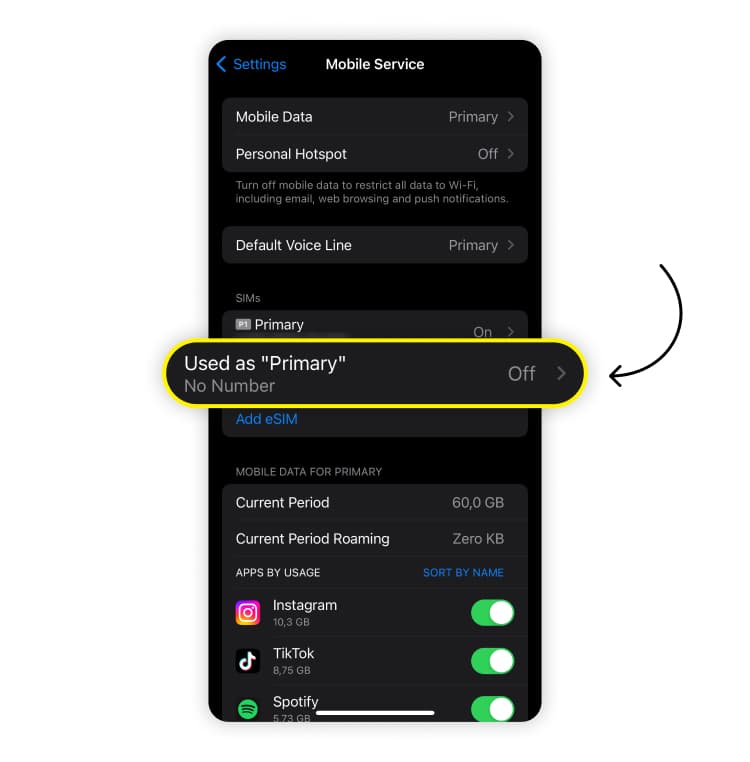
Tap "Delete eSIM."
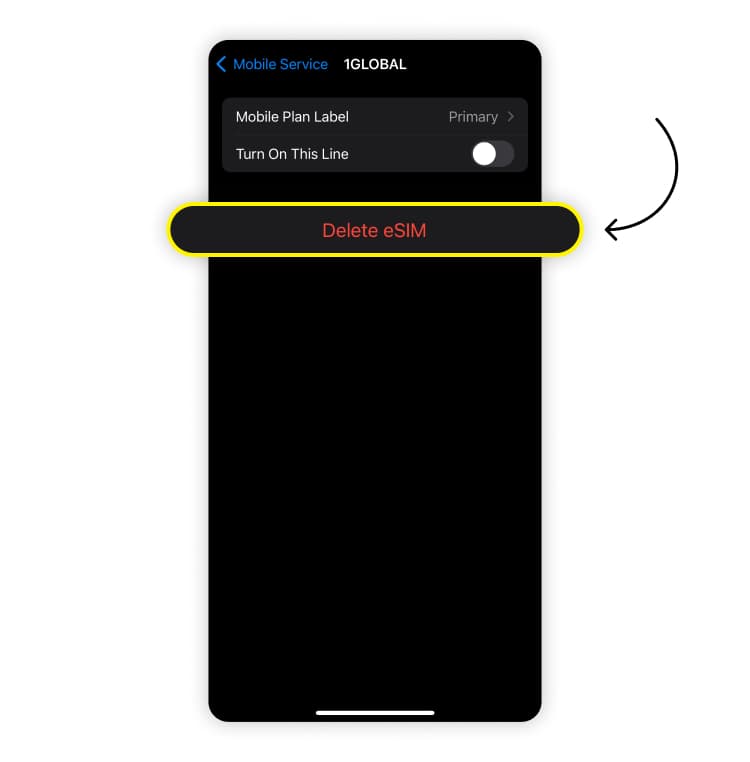
Request a new eSIM activation QR code from your carrier for your Android.
Open "Settings" on your Android device.
Tap "Connections."

Tap "SIM manager."

Tap "Add mobile plan."
Scan the QR code you got from your carrier to reactivate the eSIM. Follow the steps on your screen to finish up.
If you want to transfer your eSIM between two iPhones, follow these instructions on how to transfer your eSIM to a new iPhone.
How to transfer an eSIM from an iPhone to an Android device without a QR code
If you don’t have a QR code, you must contact your carrier for a manual eSIM transfer process or use a carrier-specific tool. That said, it can be tricky because most carriers strongly prefer QR codes for eSIM activation.
Get in touch with your carrier to find out if any of the following options are available:
Manual activation using an activation code. Some carriers provide an activation code, an SM-DP+ address, and a confirmation code. You can enter these manually during eSIM setup on an Android device.
Carrier app-based activation. A few carriers let you log in to their Android app and push the eSIM directly to the device.
Customer support re-issuance. If you no longer have the QR code, support can usually generate a new one after verifying your identity.
Be aware that not all Android devices support full manual eSIM entry, and not all carriers allow it. If the option isn’t available, a QR code is non-negotiable.
Common problems when transferring an eSIM from an iPhone to an Android phone
Switching your eSIM from an iPhone to an Android device? Some of the most common issues to be aware of include:
QR code problems. If you can’t scan the eSIM QR code, try cleaning your lens. Still no luck? Contact your carrier for a new QR code or try a different QR scanner.
Error messages. If you keep getting error messages when activating the eSIM on your Android, make sure the eSIM QR code is correct. You can also try restarting both your iPhone and Android device. If the eSIM issue persists, reach out to your carrier.
Issues with calls and messages. If you can’t make calls or send text messages after transferring your eSIM, it might need a little nudge. Check your mobile network settings, make sure you activated your eSIM card, and confirm that your eSIM is set as primary. Or try the good old restart. If your phone’s still giving you the silent treatment, it’s time to contact customer support.
In case you need to move in the opposite direction, we also have a dedicated guide to help you transfer an eSIM from Android to iPhone.

Need an eSIM app with 24/7 customer support?
Enjoy stress-free mobile data with Saily.