
Nomad eSIM not working? Causes and fixes for 2026
A Nomad eSIM usually stops working because the installation wasn’t completed properly, the plan hasn’t started, or the device, network, or eSIM itself has a compatibility issue. If your Nomad eSIM isn’t working, this guide will help you fix it. We cover the most common causes, step-by-step fixes, reinstallation, and what to do if you still can’t get connected.

Table of Contents
Why is my Nomad eSIM not working?
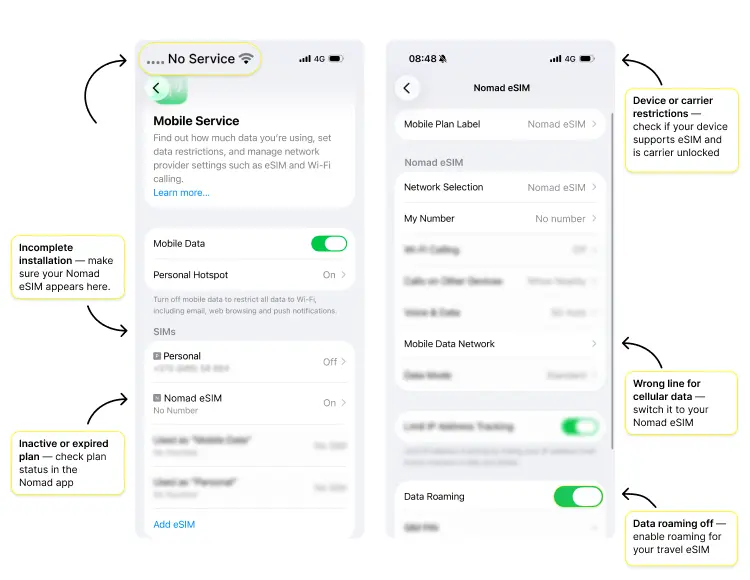
A Nomad eSIM typically fails for one of five reasons — the eSIM installation didn’t complete, data roaming is off, the plan hasn’t started or has expired, the wrong line is set for cellular data, or the phone is carrier locked or not eSIM compatible. The good news is that most of these problems take less than a minute to check for in your settings. First, determine that the Nomad eSIM actually appears in your phone’s cellular or SIM settings — if it doesn’t, the installation likely didn’t finish. And because older phones don’t all support eSIM technology, it’s worth checking our list of eSIM-supported devices or iPhones that support eSIM technology if you use an Apple device.
Again, the five main causes of a Nomad eSIM not working are:
Incomplete installation. The eSIM profile hasn’t been added correctly or doesn’t appear in your phone’s SIM settings.
Data roaming turned off. Travel eSIMs generally need roaming enabled to connect to partner networks abroad. If these terms sound confusing, our guide explains how international roaming works.
An inactive or expired plan. Most Nomad plans activate on arrival, but they only stay valid for a set number of days — if that period has passed, the plan stops working.
The wrong line enabled for cellular data. Your phone may still be trying to use your home SIM for cellular data.
Device or carrier restrictions. Your phone must support eSIM technology and normally needs to be carrier unlocked.
Coverage gaps matter too, even when an eSIM is set up correctly. A travel eSIM can only connect through the local partner networks it was provisioned for, so a weak signal indoors or in rural areas can easily make you think your eSIM is faulty.
If you switch travel eSIMs often, Saily is worth considering. It’s a prepaid eSIM service by NordVPN covering 200+ destinations with affordable data plans. It installs entirely in-app, with no QR or activation code, which eliminates another possible failure point.
Why is my eSIM connected but not working?
If your eSIM shows a cellular network connection, but you can’t use data, the most likely causes are disabled data roaming, the wrong SIM being selected for mobile data, or incorrect APN settings.
Check these settings first:
On an iPhone: Go to “Settings.” > Tap “Cellular” or “Mobile service.” > Choose your Nomad eSIM and make sure “Data roaming” is on. Then return to “Cellular data” and confirm that the Nomad line is selected.
If the APN field is blank or incorrect, enter the details provided for your Nomad plan. Nomad uses different APN details depending on the local network partner, so use the APN shown in your Nomad plan information.
On an Android device: Go to “Settings.” > Tap “Connections” or “Network & internet.” > Choose “SIM manager” or “SIMs,” and make sure the Nomad eSIM is selected for mobile data and data roaming is enabled.
To check the APN, go to “Connections” or “Network & internet.” > “Mobile networks” > “Access point names.” If the APN field is blank or incorrect, enter the details provided for your Nomad plan. Menu names and eSIM settings may vary slightly depending on your device.
If those settings look correct, try refreshing the connection — switch airplane mode on for around 30 seconds, then off again, or restart your phone completely. Still no luck on an iPhone showing “SOS” or “No service”? Go to “Settings” > “Cellular” > your eSIM > “Network selection,” turn off automatic network selection, and manually select one of the networks supported by your Nomad plan.
The same checks apply whether your Nomad eSIM isn’t working on an iPhone or an Android device, including Samsung phones.
Why does my Nomad eSIM say the plan hasn’t started?
In the Nomad app, a “Plan not started” status usually means the eSIM is installed but hasn’t yet connected to a supported network at your destination. For most Nomad plans, installation and activation are separate — you can install the eSIM before traveling, but the data plan generally starts when it first connects to an eligible local network.
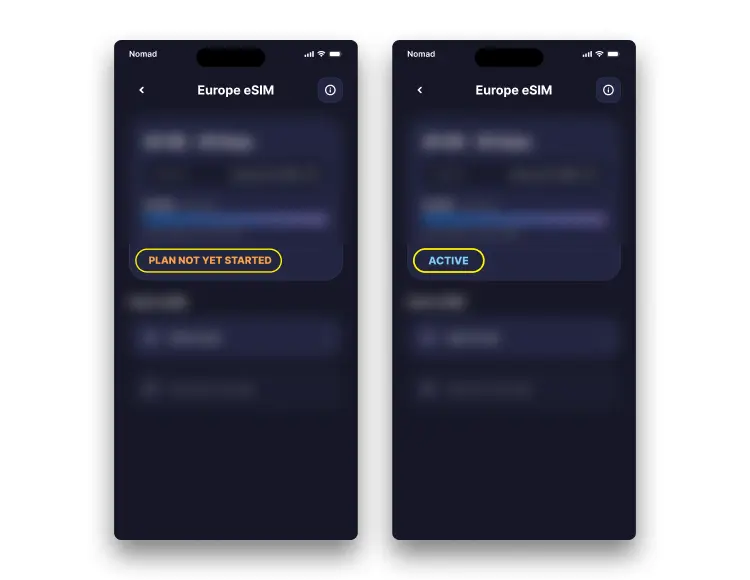
Seeing this message before you arrive is normally nothing to worry about. Once you reach your destination, the plan should activate automatically when your eSIM connects to a local network. If it doesn’t start within 10-15 minutes, try toggling airplane mode on and off, making sure data roaming is enabled, or restarting your phone.
Keep in mind that your data might already be working even if the Nomad app still shows “Plan not started” — the status can take time to catch up.
If the plan still hasn’t started after 15 minutes, check its activation deadline in the app. Nomad typically gives you 60 days from purchase to activate, though this timespan can vary between plans. Contact Nomad support before deleting or reinstalling the profile.
How to fix a Nomad eSIM that isn’t working: Troubleshooting
Before contacting support, work through these fixes, ordered from simplest to most involved:
Restart your device. A restart forces the phone to refresh its cellular connection and can resolve temporary network registration problems.
Turn on data roaming. Open the cellular settings and enable roaming for the Nomad line. This allows the travel eSIM to connect to its partner network at your destination.
Set Nomad as the default cellular data line. Phones with dual SIM functionality can continue using your home SIM even when a travel eSIM is installed, so check your cellular settings and make sure Nomad is selected specifically for mobile data. You can also check data usage in your phone’s settings to confirm which SIM is using cellular data. On iPhones and Android devices, you can also disable “Allow cellular data switching.”
Check the APN. Compare your APN settings with the details provided for your particular Nomad plan. A missing or incorrect APN can leave you connected but without usable data, so check it before digging deeper into why your cellular data isn’t working.
Toggle airplane mode on and off or choose a network manually. Turn airplane mode on for around 30 seconds, then off again. If automatic registration still fails, manually select one of the supported local networks shown in your Nomad plan details.
Reset your network settings. On an iPhone, go to “Settings” > “General” > “Transfer or reset iPhone” > “Reset” > “Reset network settings.” On Android, go to “Settings” > “General management” or “System” > “Reset” > “Reset network settings” (or “Reset Wi-Fi, mobile & Bluetooth”). Bear in mind that this removes saved Wi-Fi networks, passwords, and other network preferences, so treat it as a later step. For a broader troubleshooting guide, see why an eSIM may not be working.
Reinstall the eSIM only if necessary. Nomad allows many eSIM packages to be reinstalled, though this depends on the plan and any QR code restrictions. Check the instructions in the Nomad app or contact support before deleting the profile. If you need help with the installation process itself, see how to install an eSIM.
Never delete your only working data connection while traveling unless you already have Wi-Fi available. You may need an internet connection to access the app, retrieve installation details, or contact support.
What to do if your Nomad eSIM still won’t work
If none of these troubleshooting steps restores your connection, contact Nomad customer support and provide your phone model, destination, plan details, and a screenshot of any error message. In the meantime, having a backup travel eSIM can help you stay connected without relying entirely on public Wi-Fi while the problem is being resolved.
An eSIM can usually be bought and installed over airport, hotel, or café Wi-Fi, making it a useful solution when you need reliable internet while traveling.
A Saily eSIM is one alternative — and a well-rated one, with 4.7 stars on Trustpilot from around 29,000 reviews. Its prepaid plans cover 200+ destinations, installation is handled through the app, and support is available 24/7 through live chat and support ticket. Saily also includes built-in security tools such as web protection, an ad blocker, and a virtual location feature with 115+ locations. If you ever have trouble with the service itself, you can look at the dedicated Saily eSIM troubleshooting guide.
Optional features go beyond mobile data. Saily offers a US-based phone number that can be paired with voice and SMS plans for local calls, although international calls aren’t supported. Its Ultra plan provides 30 GB of high-speed data per month in 121+ destinations, followed by unlimited data at up to 1 Mbps. It also includes selected airport lounge and fast-track benefits, priority support, and access to NordVPN, NordPass, NordLocker, and Incogni. The Ultra plan also renews automatically, with the option to cancel before the next renewal.

Enjoy safer browsing with the Saily eSIM app
Saily is the only eSIM app with built-in online security features.
If you’re troubleshooting a different provider, our guides also cover an Airalo eSIM that isn’t working and Holafly eSIM troubleshooting.
FAQ
A Nomad eSIM that won’t connect after arrival usually needs data roaming enabled and a device restart before it registers with a local partner network. Allow 10-15 minutes on the ground, then try manual network selection. If it still fails, contact Nomad support before reinstalling the profile.
No. Deleting the eSIM removes the profile from your phone, but the plan itself stays active on your account. The catch is getting the eSIM profile back — whether you can reinstall it depends on the provider and plan. Nomad allows reinstallation for many packages but has exceptions, so check before deleting. Saily eSIMs can be reinstalled through the Saily app using the same account as long as you have access to Wi-Fi or another internet connection. Either way, deleting won’t get you a refund — if you want to cancel a plan entirely, contact the provider’s support.
Activation can take longer if your phone hasn’t yet registered with a supported local network, reception is weak, or your cellular settings need updating. Make sure you are in the plan’s covered destination, enable data roaming, confirm Nomad is selected for mobile data, and restart the phone. If your data already works but the Nomad app still shows the plan as not started, the displayed status may simply be delayed.

Always connected, always on course
Connect instantly with a Saily eSIM and enjoy effortless internet access.

Related articles