






How to remove a SIM card from an iPhone: A guide for each iPhone model
You probably need to know how to remove a SIM card from an iPhone — that’s what this article is about, after all! In this guide, you’ll learn how to remove the SIM card from your iPhone, why this can be a good idea, and how to stop using physical SIM cards altogether.

Table of Contents
- Why remove a SIM card from an iPhone?
- What do you need to remove a SIM card from an iPhone?
- How to remove a SIM card from an iPhone
- Step 1: Turn off the iPhone and remove the cover
- Step 2: Find the SIM card slot on your iPhone model
- SIM card slot on the iPhone 12 and later versions
- SIM card slot on an iPhone 11 and previous versions until the iPhone 4
- SIM card slot on the very first iPhones
- Step 3: Hold the iPhone and insert the SIM-eject tool
- Step 4: Pull out the tray and remove the SIM card
- How to remove a SIM card from an iPhone without a tool
- How to stop using physical SIM cards
Why remove a SIM card from an iPhone?
You could decide to remove the SIM card from your iPhone for several common reasons. But before we cover those, you might be wondering — do iPhones have SIM cards? Don’t they all use eSIM now? Many iPhones include an embedded SIM (eSIM) and a slot for a physical SIM card, while iPhone 7 and earlier models have no eSIM support.
The most common reason for removing a SIM card is the purchase of a new phone — whether you’re upgrading, selling your old device, or moving your SIM into a temporary backup. It’s also common practice when traveling and using a local SIM card abroad.
Some people remove their SIM to troubleshoot network issues, since a SIM card can go bad and malfunction. Others do it for security reasons before handing a phone over for repair or resale. And if you’re moving fully to eSIM technology, taking out the physical SIM is often the final step.
What do you need to remove a SIM card from an iPhone?
All you need to remove a SIM card from an iPhone is a small pin-like tool to open the SIM tray. Ideally, that’s the SIM ejector tool that came in your iPhone’s box, but a straightened paper clip works just as well. Similar tools from other phones or any thin, sturdy metal pin will also get the job done.
That’s it — no specialist equipment, no technical knowledge, and no need for professional help. The process is quick and straightforward, as long as you’re gentle and don’t force anything. Anyone can do it safely in under a minute.
How to remove a SIM card from an iPhone
To remove a SIM card from an iPhone, find the small SIM tray on the side of the device (usually on the left) and take off your case if needed. Insert a SIM ejector tool or a straightened paper clip into the tiny hole and press gently until the tray pops out. Remove the SIM card, place the new one in with the notch aligned, then slide the tray back into the phone. If you want details on each step, read on!
Step 1: Turn off the iPhone and remove the cover
Before you try to take out the SIM card, make sure you have a large, clear surface to work on. You always run the risk of accidentally damaging your SIM, but keeping a clean workspace helps reduce the chance of breaking something by mistake.
Next, turn off your iPhone. If you use a case, remove it — Apple iPhone cases often cover the SIM card slot.
Step 2: Find the SIM card slot on your iPhone model
Next, you need to find the SIM card slot on your iPhone. The exact location varies depending on your iPhone model, so hold your phone upright facing you and then use the guide below to locate your iPhone’s SIM card slot.
SIM card slot on the iPhone 12 and later versions
The SIM card slot on an iPhone 12 and later versions is on the left side of the phone.
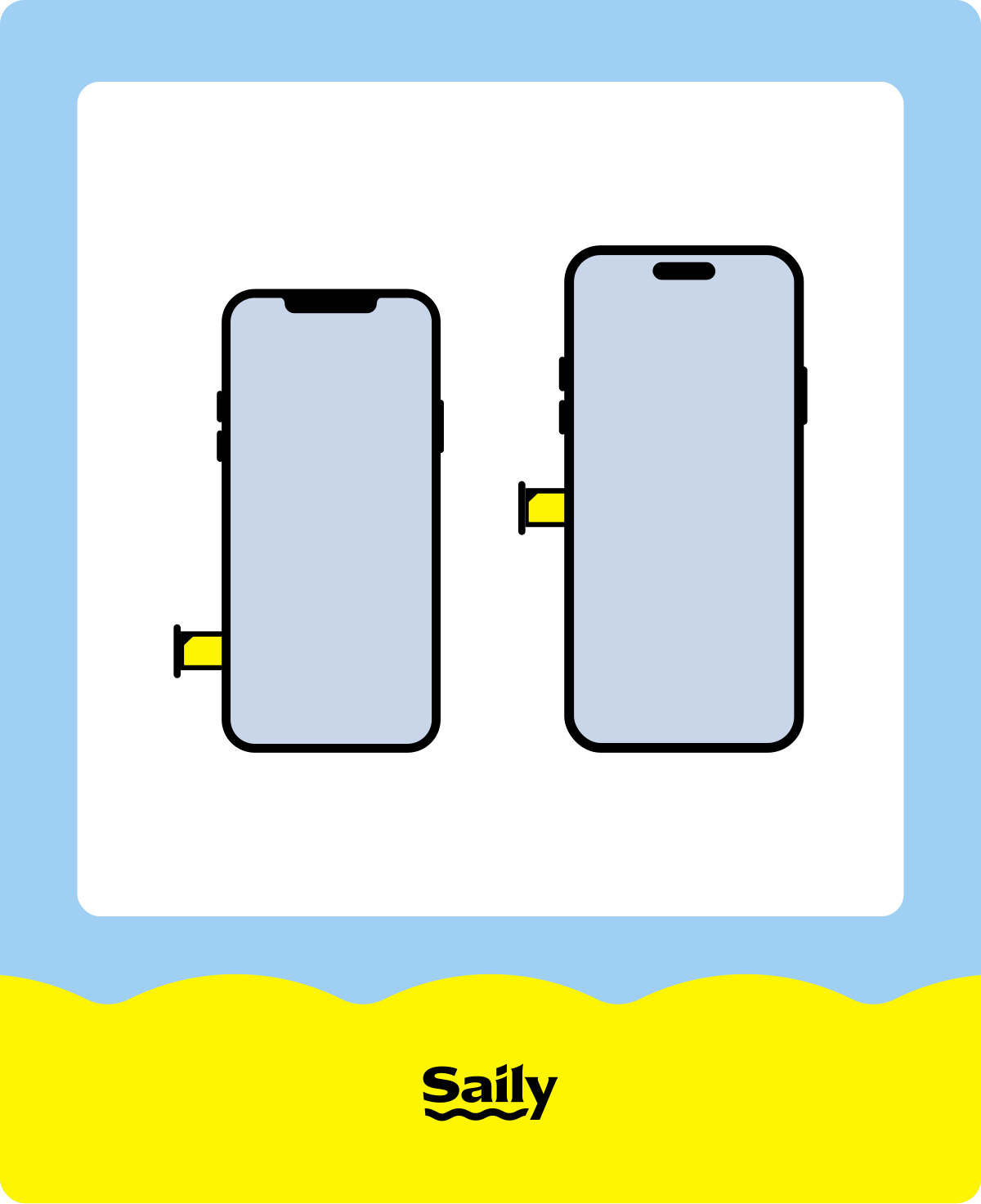
You’ll find the SIM tray on the left side if you have any of the following Apple iPhone models:
iPhone 12
iPhone 12 Mini
iPhone 12 Pro
iPhone 12 Pro Max
iPhone 13
iPhone 13 Mini
iPhone 13 Pro
iPhone 13 Pro Max
iPhone 14
iPhone 14 Plus
iPhone 14 Pro
iPhone 14 Pro Max
iPhone 15
iPhone 15 Plus
iPhone 15 Pro
iPhone 15 Pro Max
iPhone 16
iPhone 16 Plus
iPhone 16 Pro
iPhone 16 Pro Max
Note: If you bought an iPhone 14 or later in the United States, it won’t have a SIM card slot. These newer iPhones use eSIM technology instead of nano SIM cards.
SIM card slot on an iPhone 11 and previous versions until the iPhone 4
If your iPhone model is between the iPhone 4 and iPhone 11, the SIM tray will be on the right side.
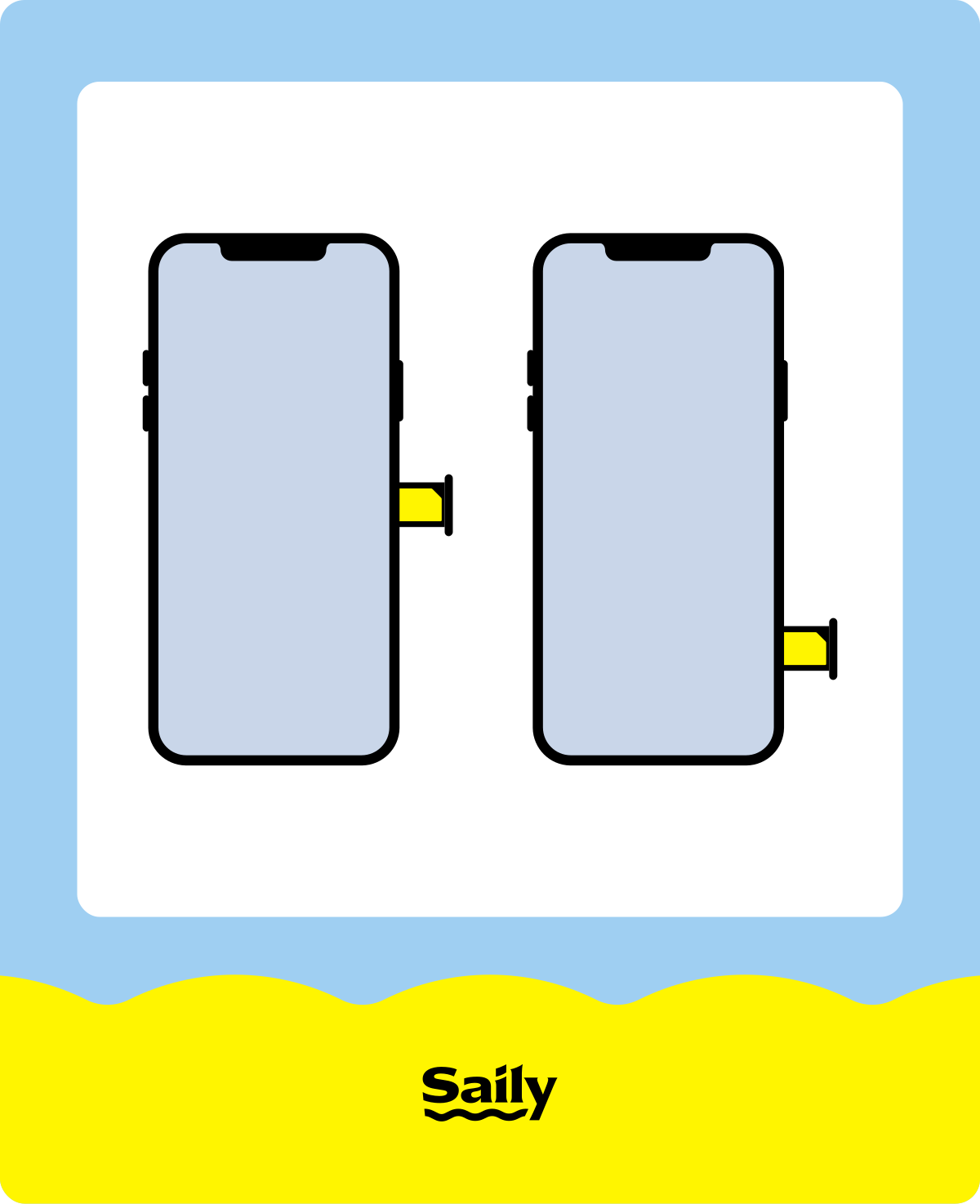
You can find the SIM tray on the right of any of the following models:
iPhone 4
iPhone 4s
iPhone 5
iPhone 5s
iPhone 5c
iPhone 6
iPhone 6 Plus
iPhone 6s
iPhone 6s Plus
iPhone 7
iPhone 7 Plus
iPhone 8
iPhone 8 Plus
iPhone SE 1st generation
iPhone SE 2nd generation
iPhone SE 3rd generation
iPhone X
iPhone XR
iPhone XS
iPhone XS Max
iPhone 11
iPhone 11 Pro
iPhone 11 Pro Max
SIM card slot on the very first iPhones
If you have one of the very first iPhones, the SIM card slot is on the top of the phone.
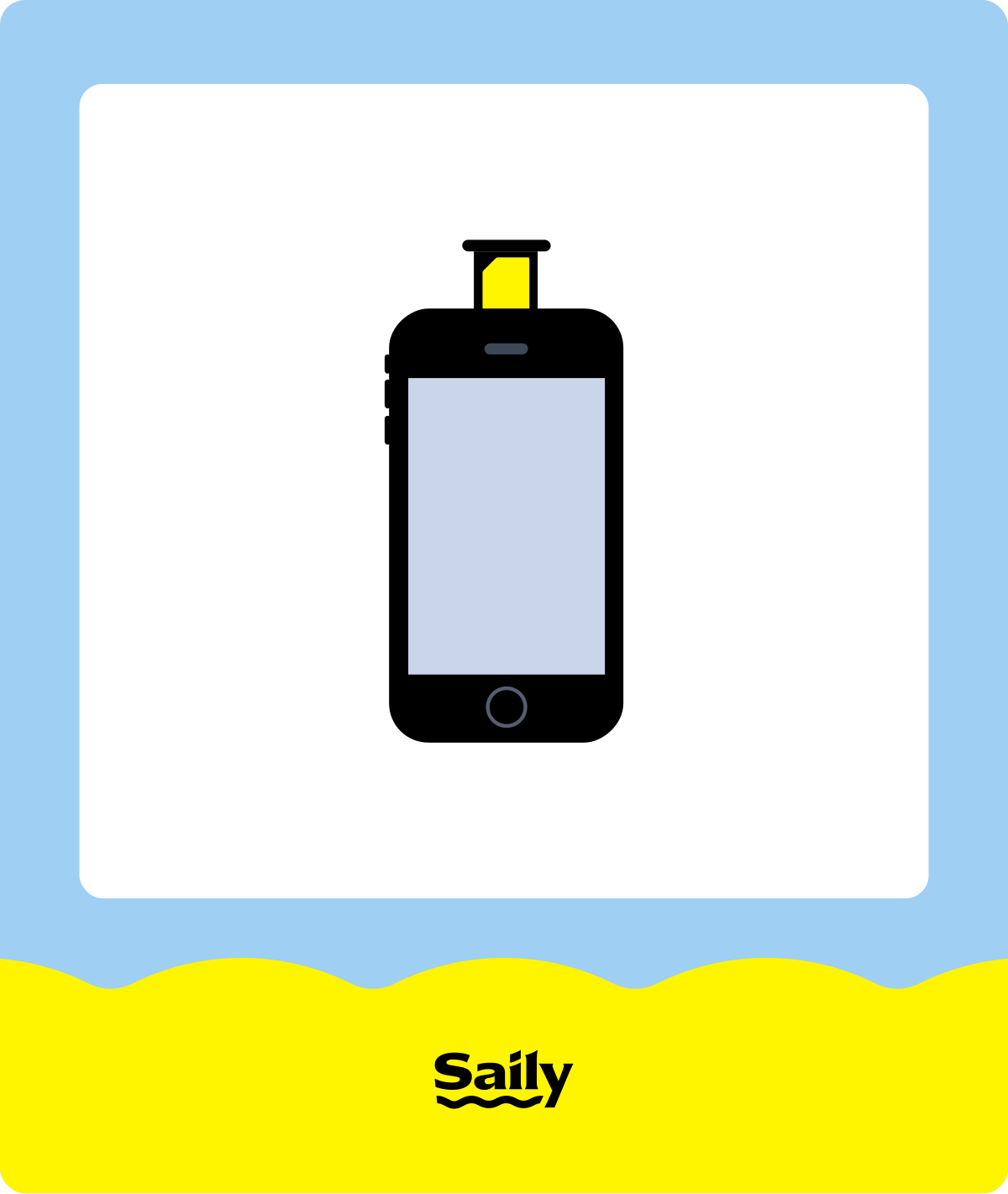
You can find a top SIM tray on:
The original iPhone
iPhone 3G
iPhone 3Gs
Step 3: Hold the iPhone and insert the SIM-eject tool
Once you’ve found your iPhone’s SIM card slot, insert the SIM-eject tool into the hole in the tray. Push gently, and the SIM tray should pop out.
If you don’t have the proper SIM ejector tool, any small, pointed object that will fit in a SIM card slot will do, such as a paper clip, safety pin, or earring. Any small, pointed object that can fit into the SIM tray hole will work just fine.
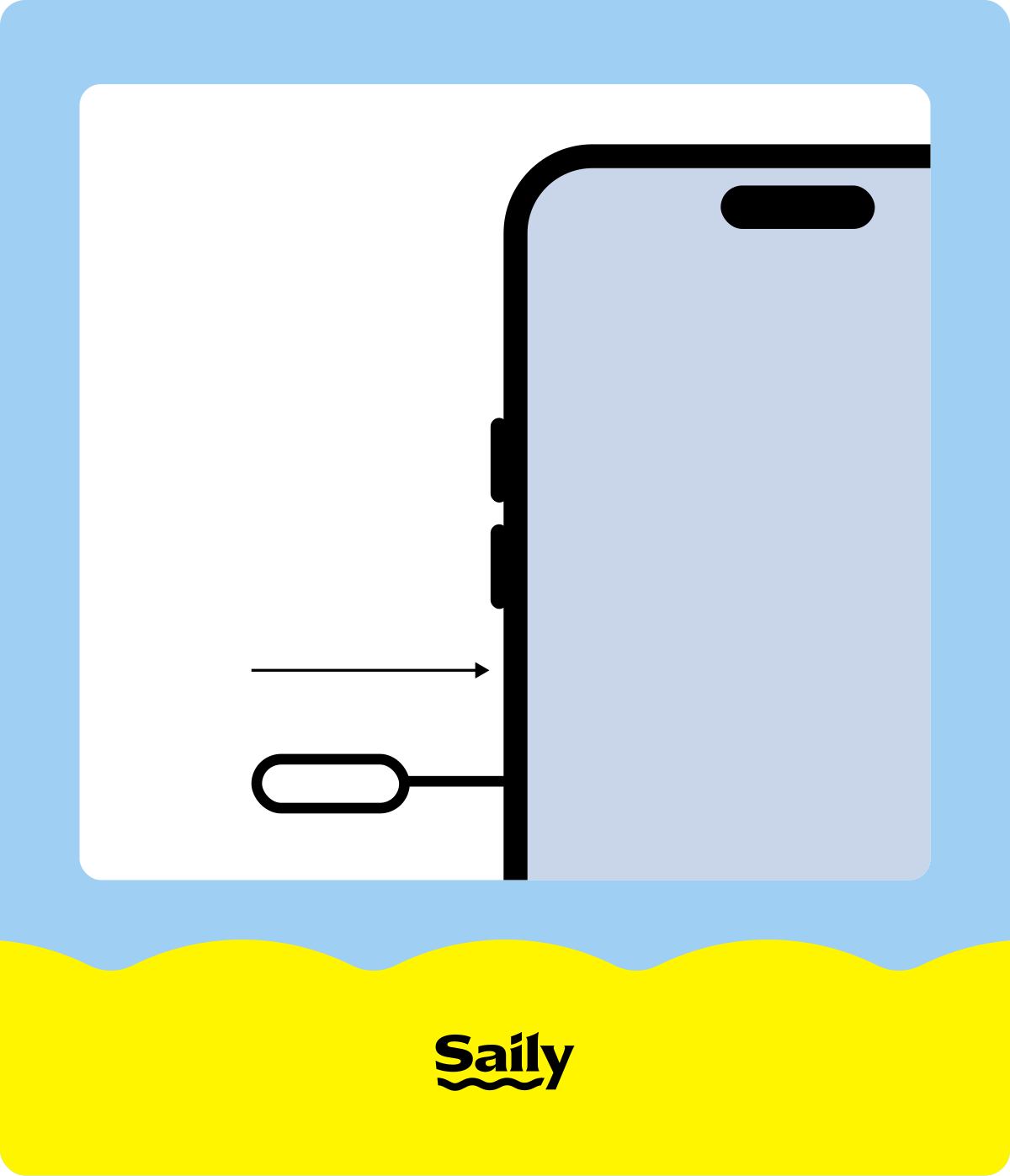
Step 4: Pull out the tray and remove the SIM card
Finally, pull out the tray and take out the SIM card. Pay attention to where the notch in the SIM card is because it will only fit back one way. If you replace your SIM with a new SIM card from another service provider, it will need the same orientation. Handle your SIM card carefully so you don’t damage or lose it.

How to remove a SIM card from an iPhone without a tool
If you don’t have the proper SIM ejector tool, any small, pointed object that will fit in a SIM card slot will do, like a paper clip, safety pin, or earring. Simply insert the object into the hole, and the SIM tray will pop out.
How to stop using physical SIM cards
If you don’t want to worry about dealing with physical SIM cards, you have another option: an eSIM.
eSIMs are a virtual alternative to physical SIMs. The latest smartphone models, including the U.S. version of the iPhone 16, are streamlining devices with eSIM technology, and eSIMs are especially helpful for using an iPhone internationally.
With an eSIM, you don’t have to pay high roaming fees or fumble with physical SIM cards. You can buy your plan ahead of time, and it will automatically activate when you arrive at your destination. Plus, you don’t have to worry about your SIM card getting lost, damaged, or even stolen.
Saily offers eSIMs for over 200 destinations so that no matter where you are, you can get high-speed data!

Need an eSIM app with 24/7 customer support?
Enjoy stress-free mobile data with Saily.
