






How to use a hotspot on Android: A detailed guide
Did you know that you’re carrying fast, secure internet everywhere you go? That’s right — you can turn your Android phone into a mobile hotspot and share your mobile data with your laptop, tablet, or friends’ phones! A mobile hotspot lets your phone broadcast Wi‑Fi from your cellular data, which works great when you’re traveling, working remotely, or looking to avoid slow or risky public Wi‑Fi. Not sure how to set up your Android hotspot? Stick around and you’ll learn how to turn on a hotspot on Android, connect other devices, and troubleshoot issues in minutes!

Table of Contents
- How to turn on a hotspot on Android
- How to quickly turn the hotspot on (and off) on Android
- How to use a mobile hotspot on Android
- Connect to an Android hotspot
- Find and change the Android hotspot password
- Check the connected devices to your Android hotspot
- Check hotspot usage on Android
- Limit hotspot data usage on Android
- Change the Android hotspot name
- What to do if your Android hotspot is not working
- Tips for effective Android hotspot use
How to turn on a hotspot on Android
It takes just a few seconds to configure a hotspot on your Android phone. The specific steps may differ depending on your phone’s software and hardware, but you will always find the hotspot option somewhere under network settings.
For example, here’s how you can turn your Samsung Galaxy smartphone into a mobile hotspot:
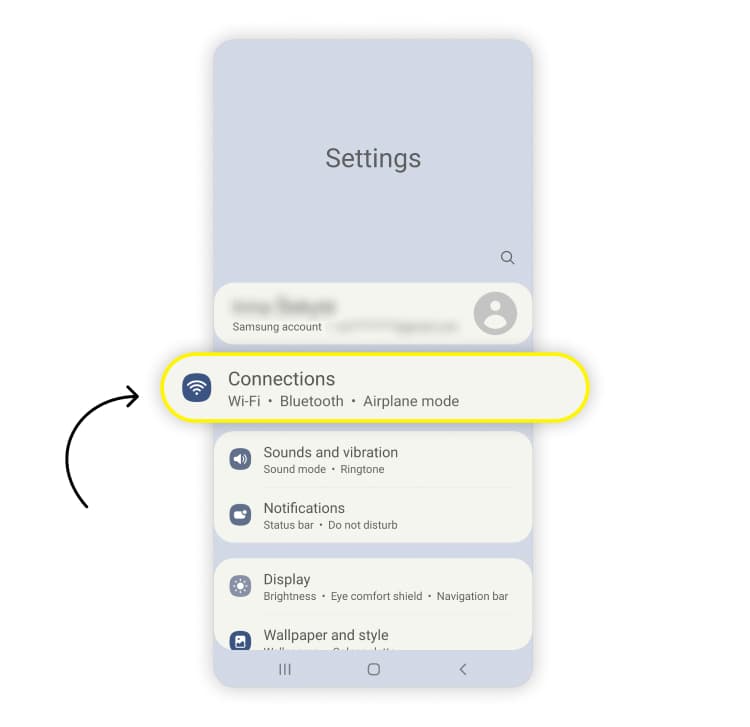
Go to “Settings” and tap either “Network and internet” or “Connections,” depending on your device.
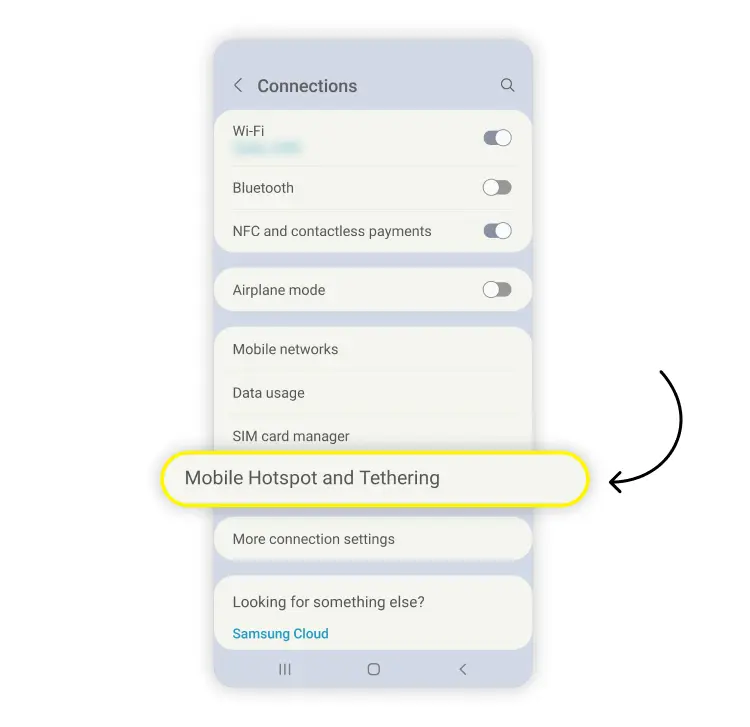
Then tap “Mobile hotspot and tethering.”
Finally, toggle on “Mobile hotspot.”
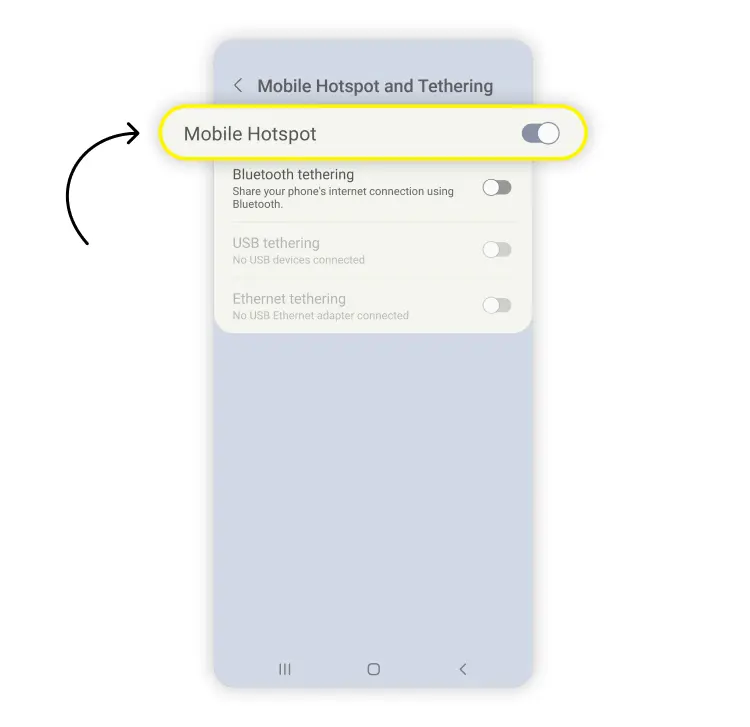
By the way, you can also tether one device to your phone by using a USB cable, Bluetooth, or Wi-Fi. You can read more on this function in our blog post on tethering vs. hotspot.
Note: The hotspot setup process on Android tablets is similar. You can turn on the hotspot by opening “Settings,” finding “Network/Connections,” then “Hotspot” or “Tethering.”
How to quickly turn the hotspot on (and off) on Android
Most smartphones running Android make it super easy to quickly turn the hotspot on and off. You can do so either in the “Settings” (see above), or in the “Quick settings” panel. Just swipe down from the top of your screen to open the notification panel, swipe down again to expand the “Quick settings” panel, and tap “Mobile hotspot.”
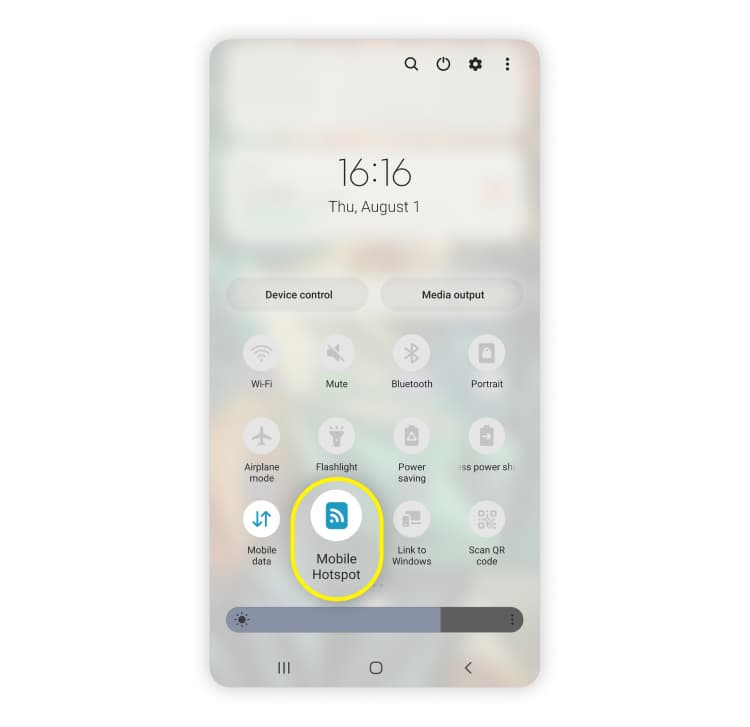
And that’s it! Your phone is now a Wi-Fi hotspot. Tap the “Mobile hotspot” icon again to stop sharing your internet connection.
If the “Mobile hotspot” icon is not in the “Quick settings” panel, add it by opening the “Quick settings” panel, tapping the three dots in the upper right corner, and tapping “Edit buttons.”
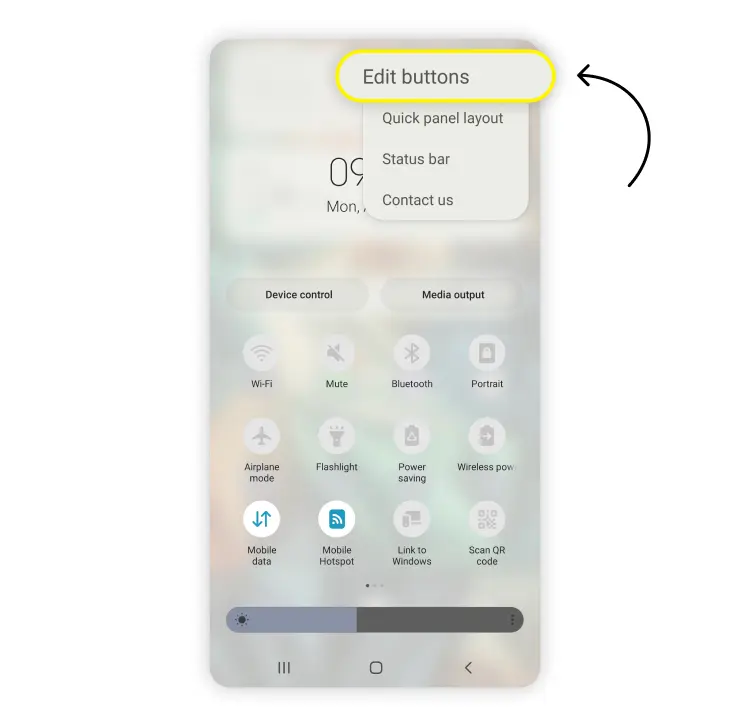
A panel with available buttons will open — simply tap the “Mobile hotspot” icon to add it to the “Quick settings” panel.
Tip: Some phones offer a “Turn off hotspot automatically” feature when no devices are connected. Enable it to save battery and data.
How to use a mobile hotspot on Android
Once your hotspot is on, you can manage connections, passwords, device access, and data usage. The sections below cover the most common tasks and settings related to Android hotspot management.
Connect to an Android hotspot
Let's say you are connecting to your friend's Android hotspot. First, your friend has to turn on the hotspot on their phone and tell you the hotspot’s name. Then, you have to open Wi-Fi settings on your device, find your friend’s hotspot name in the list of networks, and tap on it. You’ll then have to provide the password for your friend’s hotspot. Once you do, you’ll be immediately connected to their internet connection.
Your friend can also share a QR code with you for an easy-peasy connection. The QR code is in the “Mobile hotspot” window — your friend can show it to you or share a link.
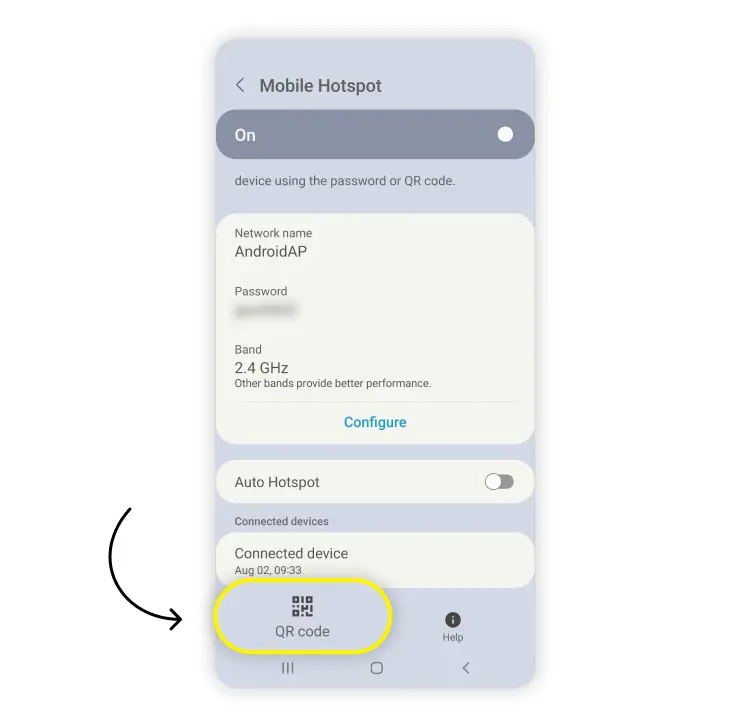
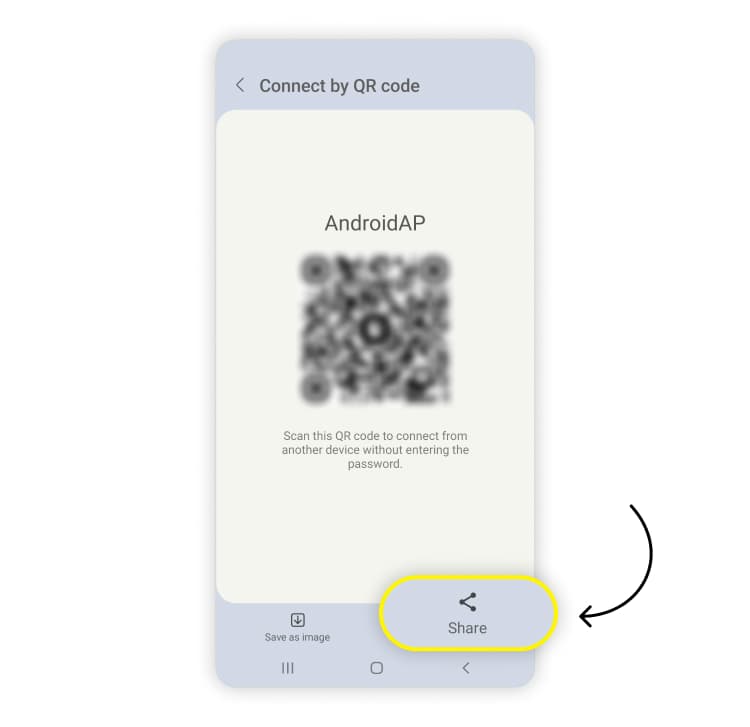
Once you scan it, you’ll be automatically connected to your friend’s network.
The same principle works when connecting to hotspots hosted by other phones. However, when connecting to a hotspot that’s not hosted by someone you know well (say, a workshop teammate at the conference or a helpful passerby at the airport), make sure you use additional safety measures, such as a VPN. Also, remember to disconnect and forget the network when you’re done browsing.
Find and change the Android hotspot password
If you’re one of the kind souls who shares their hotspot password left and right, you might notice a sudden spike in mobile data usage. It could mean someone you shared your password with is taking advantage of your phone’s hotspot. If that happens to be the case, it’s best if you change your password and turn the freeloaders away.
To change your hotspot password, follow these steps:
Go to “Settings” and tap either “Network and internet” or “Connections,” depending on your device.
Then tap “Mobile hotspot and tethering.”
Instead of toggling on “Mobile hotspot,” simply tap on it to open the settings.
Tap “Configure.”
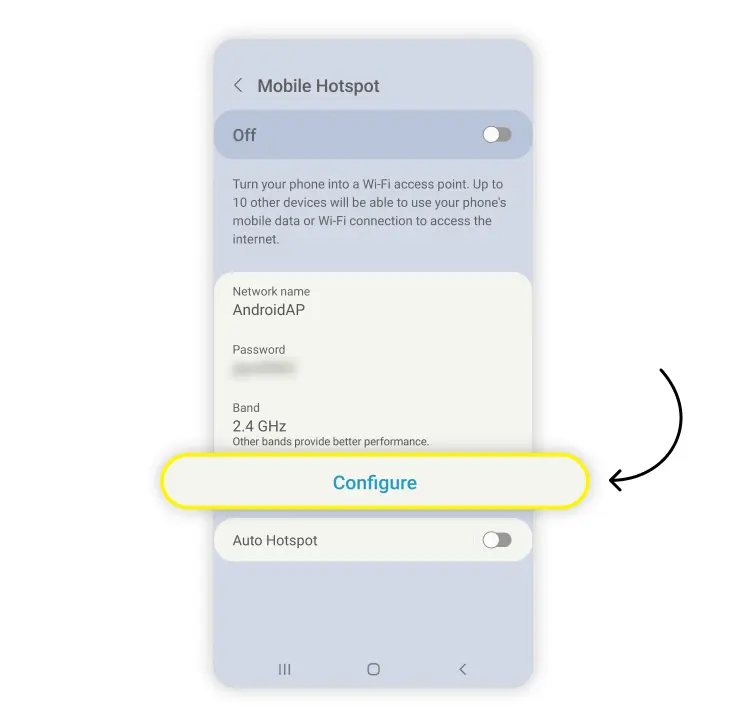
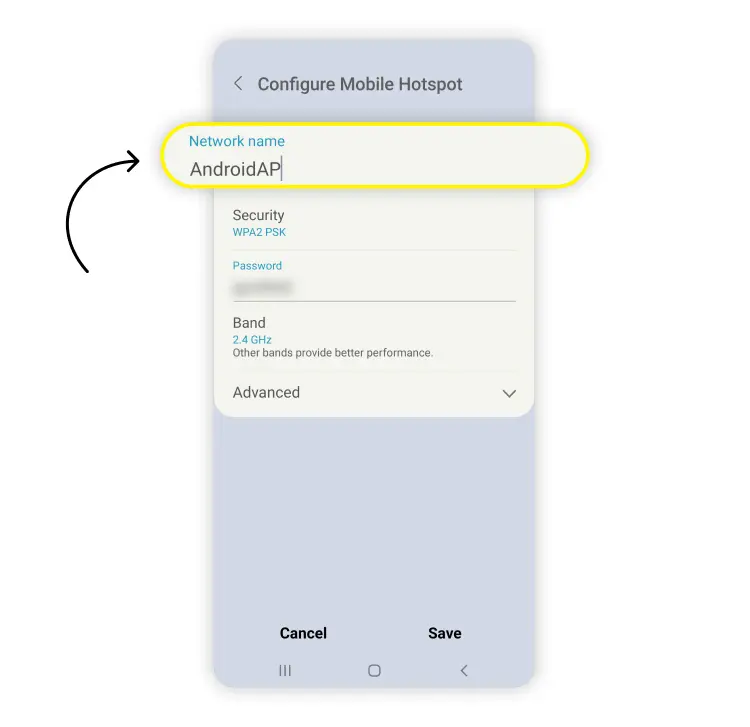
In the “Configure mobile hotspot” window, type in a new network name and tap “Save.”
Check the connected devices to your Android hotspot
If you’re not sure if anyone else is using your Android hotspot, you can easily check in the settings.
Go to “Settings” and tap either “Network and internet” or “Connections,” depending on your device.
Tap “Mobile hotspot.”
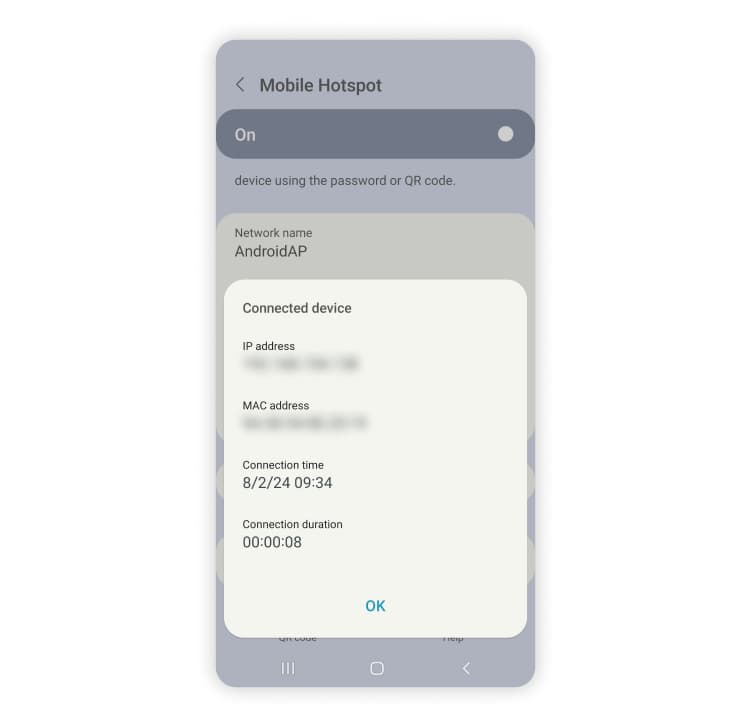
You’ll see a list of connected devices.
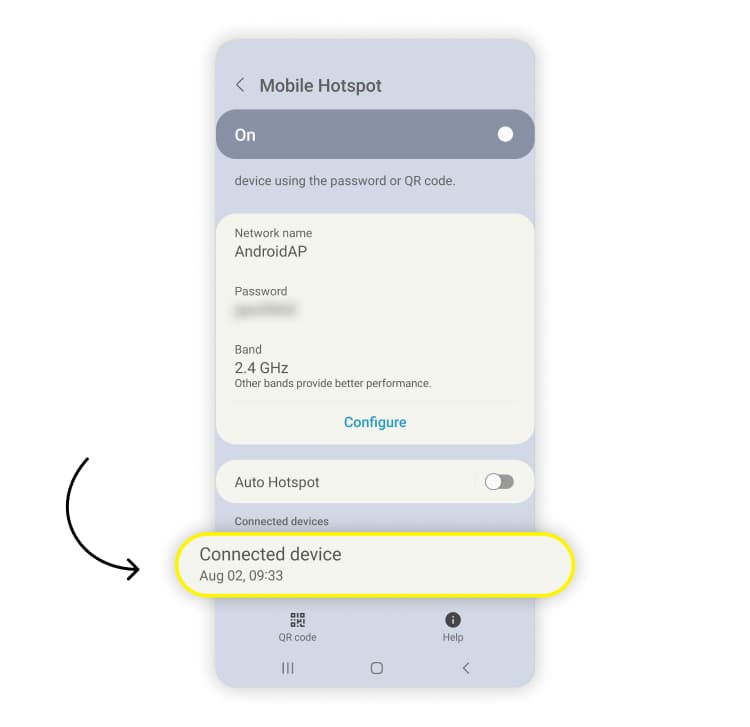
To see information about a specific device, tap on it to see its information.
Check hotspot usage on Android
Have you lost track of how much data you’re using when your phone acts as a Wi-Fi hotspot? It takes just a second to check!
Go to “Settings” and tap either “Network and internet” or “Connections,” depending on your device.
Tap “Data usage.”
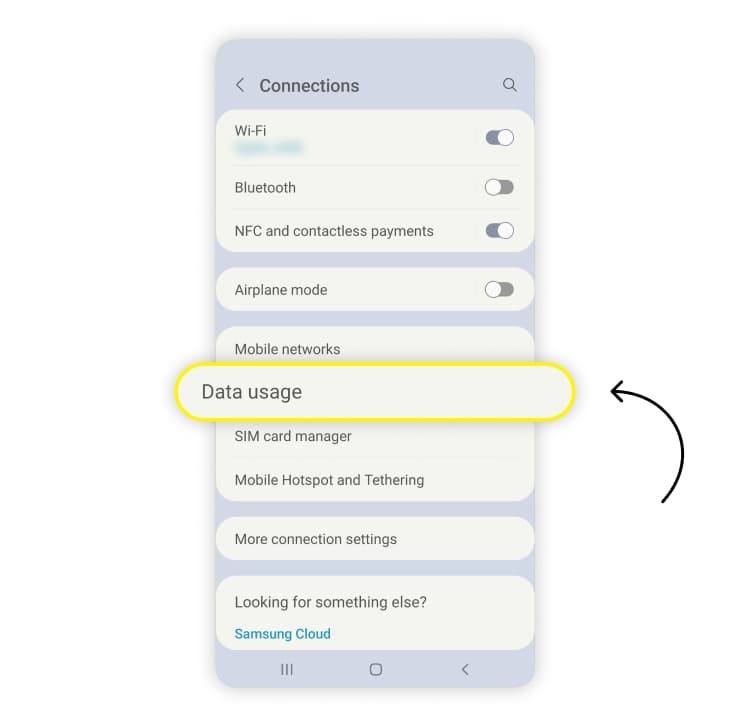
Then tap “Mobile data usage.”
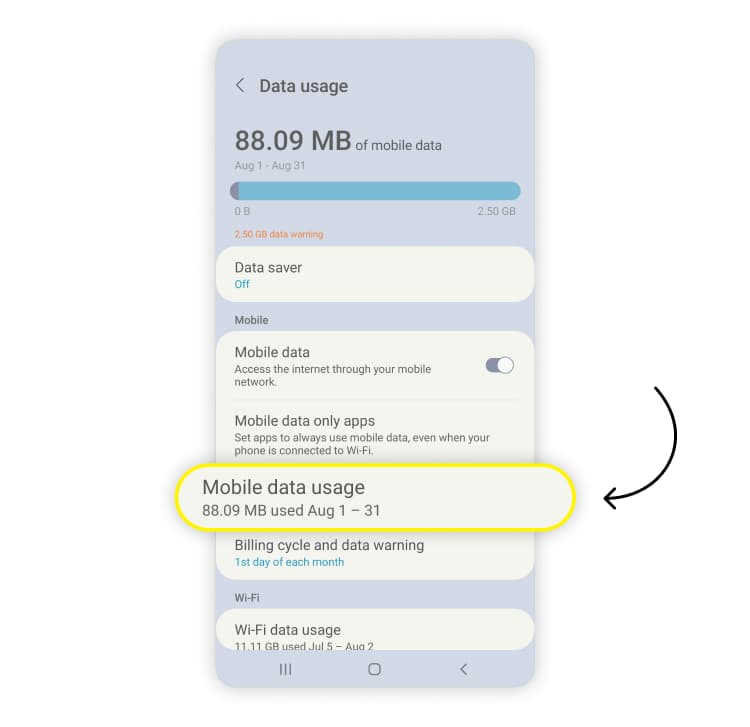
Scroll down the list to find the “Mobile hotspot and tethering” section and tap it.
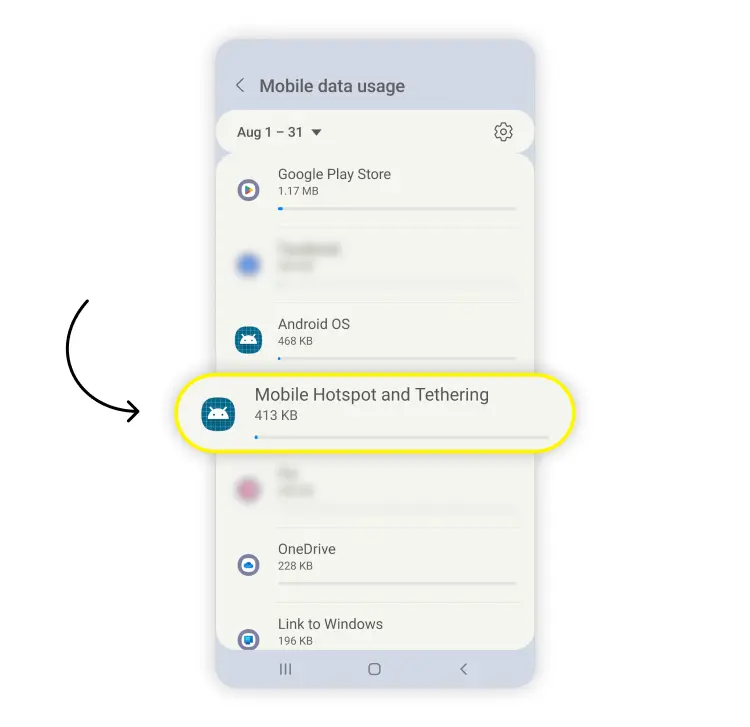
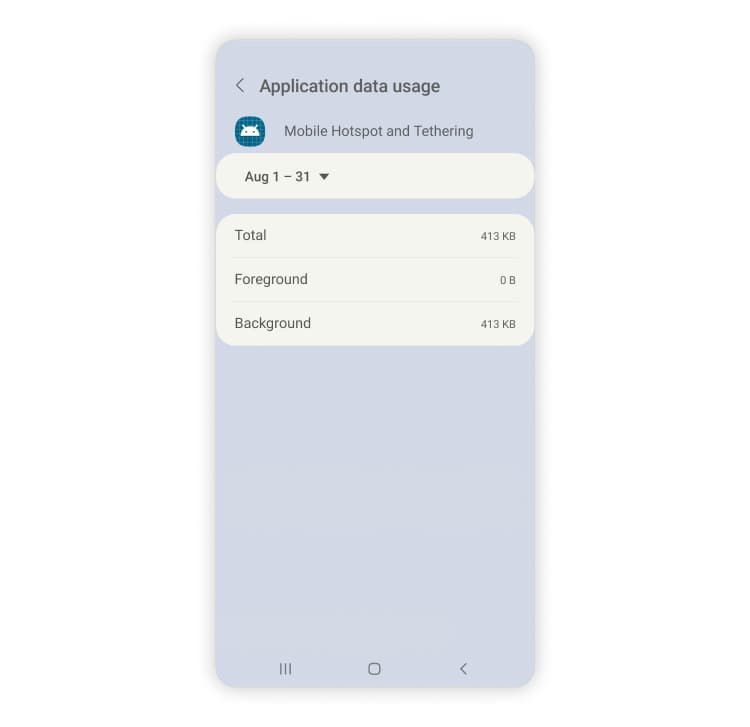
See your hotspot data usage for the current or previous months.
For more tips on tracking and managing your hotspot data, see our blog post on how to check hotspot usage on your iPhone and Android.
You might also want to check your eSIM data usage, especially if you’re abroad and use your phone as an eSIM hotspot. Just follow the same steps as above. Your eSIM might be listed under “Mobile data usage” or under “Mobile data only apps.” Just tap on it to see how much data you’ve used.
Limit hotspot data usage on Android
Feeling like you’ve gone a bit wild with your hotspot usage? You can limit your hotspot data usage any time:
Go to “Settings” and tap either “Network and internet” or “Connections,” depending on your device.
Tap “Data usage.”
Select “Mobile hotspot and tethering.”
Tap “Mobile hotspot.”
Tap “Configure.”
Tap “Advanced.”
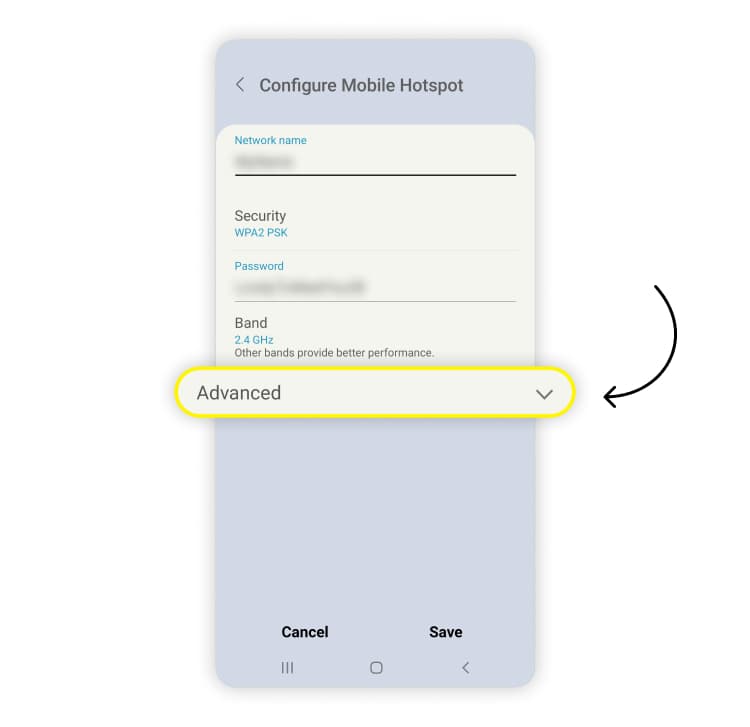
In the dropdown menu, find “Set mobile data limit” and tap it.
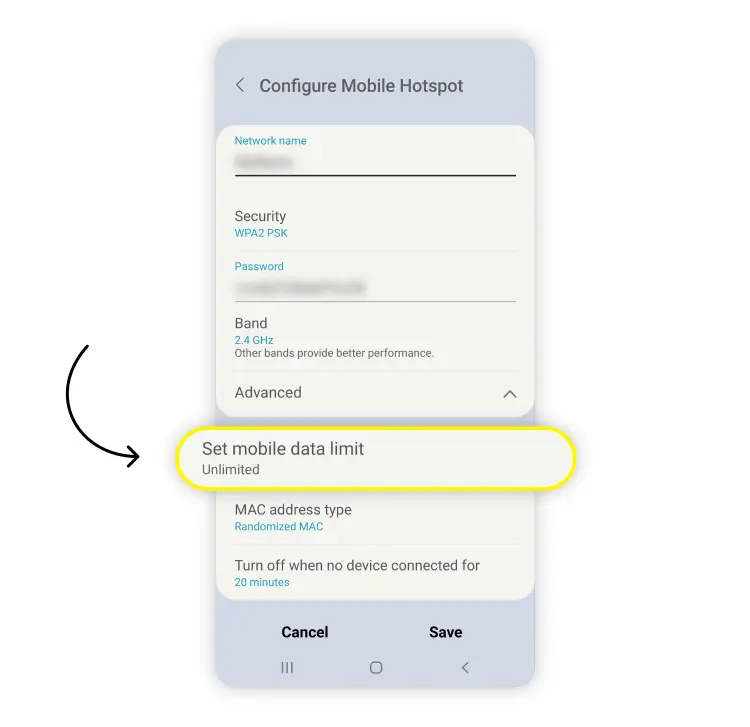
Type in the number of MB you want to set your limit at, for example, 5 MB, and tap “OK.”
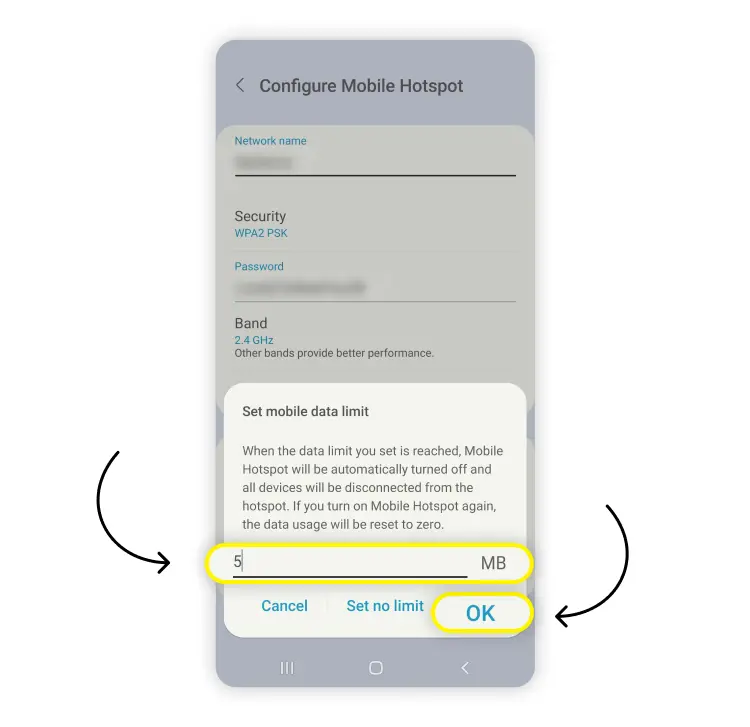
When you reach your data limit, your mobile hotspot will be automatically turned off, and all devices will be disconnected from the hotspot. Some Android phones might only offer general mobile data warning/limits, capping overall data, not hotspot only.
If you get more data and feel like the limit is too restrictive, you can change it any time!
Tip: Set a lower warning first, then a hard limit if you need stricter control.
Change the Android hotspot name
Would you like your hotspot name to be just as unique as you? On top of adding some zing to your hotspot name and making it easier for your friend to find it, you will also add to your phone’s security. How? Default names might reveal the make and model of your phone, making it an attractive target for online snoopers. You can change it to whatever you like, following the same steps you would use to change your hotspot password. Once you reach the “Configure mobile hotspot” setting:
Type in a new network name and tap “Save.”
What to do if your Android hotspot is not working
Don’t worry if your Android hotspot is acting up — it’s fixable! A hotspot might not be working due to a few reasons:
Your mobile plan might not offer hotspot data.
You might be in a location with weak cellular connection.
Your hotspot settings might have some configuration errors.
You might have reached the maximum number of connected devices.
Your system might have unexpected bugs.
If you run one of these issues, you can try to fix your hotspot connection by taking steps like:
Checking if your plan includes hotspot data.
Ensuring you have a strong mobile signal.
Verifying that the hotspot is turned on and configured correctly.
Removing one of the connected devices to get a new one connected to your hotspot.
Restarting your phone or checking for software updates.
Still stuck? Contact your carrier to confirm hotspot is enabled on your line.
Tips for effective Android hotspot use
No one wants to waste their hotspot data. Here’s what you can do to manage your Android hotspot as effectively as possible:
Use strong passwords and WPA security. WPA2 or WPA3 security protocols ensure a safer connection, so make sure to use either one and set up a strong password to keep strangers out!
Limit the number of connected devices. Fewer connected devices mean better speeds and lower latency. Besides, how long can that one friend leech the internet from you?
Monitor your data usage. When sharing the hotspot, make sure to check “Mobile hotspot and tethering” regularly. That will help you avoid overusing it. You can also use a data usage estimator to check how much data you might need for hotspotting.
Turn the hotspot off when not in use. If you’re wondering whether you should keep your mobile data on or off when not hotspotting, the answer is “don’t.” Don’t waste that precious data and your battery life — disable the hotspot between sessions.
Pick the right Wi‑Fi band. Choose 2.4 GHz for range and compatibility and 5 GHz for faster speeds at short range.
Check and configure the access point name (APN) if needed. Correct APN ensures the hotspot works reliably with your carrier and might sometimes malfunction (especially if you’ve switched carriers or SIM cards). Make sure to check your SIM settings and reconfigure your APN if you see issues.
Charge while tethering. Hotspots drain batteries fast. Keeping your phone plugged in will allow you to use the hotspot longer.
Use automatic shutoff. If you use your hotspot regularly, enable “turn off hotspot automatically” when no devices are connected. That will save you the hassle of having to turn off the hotspot manually.
Choose a flexible, budget‑friendly mobile data plan. Pick plans that include hotspot data or download an eSIM app with fair rates to stay online without surprises. If you choose an eSIM service such as Saily, you’re likely to get the best bang for your buck with affordable plans, security features, and even a built-in ad blocker!

Need an eSIM app with 24/7 customer support?
Enjoy stress-free mobile data with Saily.
FAQ


Related articles
