How to reset an eSIM on an iPhone? Guide for resetting and restoring your eSIM settings
Glitches happen, but “No signal” doesn’t mean you have to pause your trip. A quick eSIM reset often clears the digital cobwebs better than waiting for a tower to catch up, effectively giving your connection a fresh start. This guide walks you through scrubbing the settings, reinstalling your profile, and getting you back online before your coffee gets cold.

Table of Contents
What is an eSIM reset on an iPhone?
An eSIM reset involves deleting the digital SIM profile from your iPhone. You can trigger this removal specifically to fix network issues or include it as part of a broader factory reset. This action cuts your cellular service immediately. You must reactivate the plan with your carrier to get back online. Crucially, this process wipes the network configuration but leaves your personal data, photos, and apps safe.
When to reset an eSIM on an iPhone
Most eSIM connection drops only need a quick toggle of airplane mode. If that doesn’t work, look for these specific signs that indicate a full reset will save the day.
The “Activating” loop: Your eSIM status gets stuck on “Activating” or “Verifying” for more than 15 minutes.
Phantom signal: You see signal bars, but the iPhone eSIM is not working and web pages refuse to load.
Complete service dropouts: You lose service entirely in a city where you know coverage exists.
Missing line: You scanned the QR code, but the line never appeared in your settings.
Update hiccups: An iOS update caused your data speeds to stutter or fail.
Recognition is the first step to solving the problem. Once you identify one of these symptoms, you can stop fighting the settings menu and proceed directly to the reset.
Before resetting an eSIM card on an iPhone
A little preparation ensures this process goes smoothly. Take these steps to guarantee you get back online without a hitch.
Make sure you’re on a stable Wi-Fi connection: You need an internet connection to reinstall an eSIM. Connect to a stable hotel or cafe Wi-Fi network first.
Back up the iPhone in question: Technology benefits from safety nets. Run a quick backup to iCloud just to be safe.
Save your EID: Support teams sometimes need your EID number to find your profile. Write it down.
Locate your activation code: Find the QR code or manual details your provider sent you. You will need these for the reinstallation.
Check your plan: Make sure your data package is valid. A reset fixes connections, but it won't renew an expired plan.
You have built your safety net. Now you can wipe the slate clean without worrying about what you might lose during the process.
How to reset an eSIM on an iPhone
This procedure works for every eSIM-compatible model, from the iPhone XR and SE (2nd gen) all the way through the iPhone 11, 12, 13, 14, 15, 16, and 17 series.
Open "Settings" on your home screen.
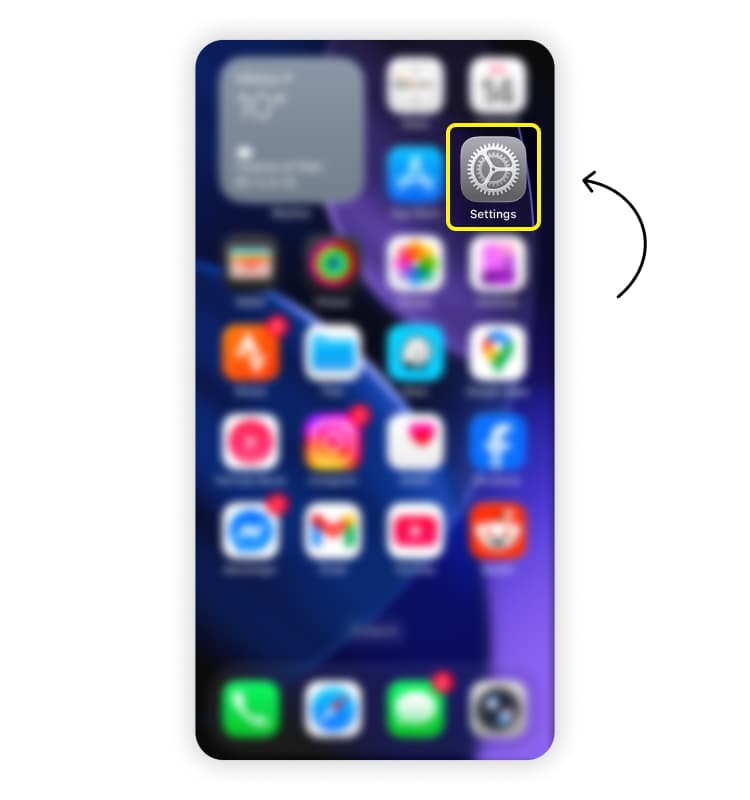
Tap "Cellular" (or "Mobile service" / "Mobile data" depending on your region).
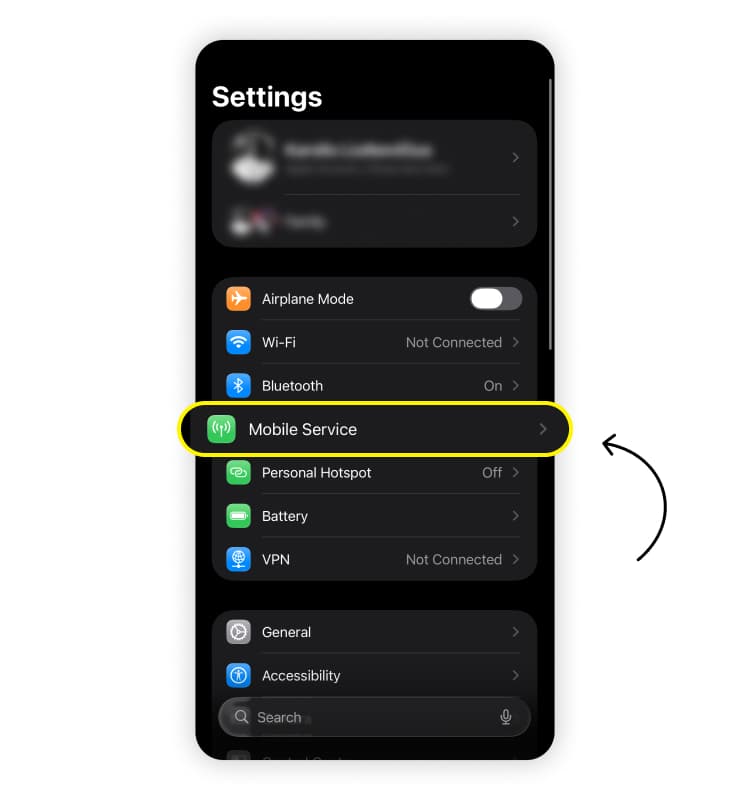
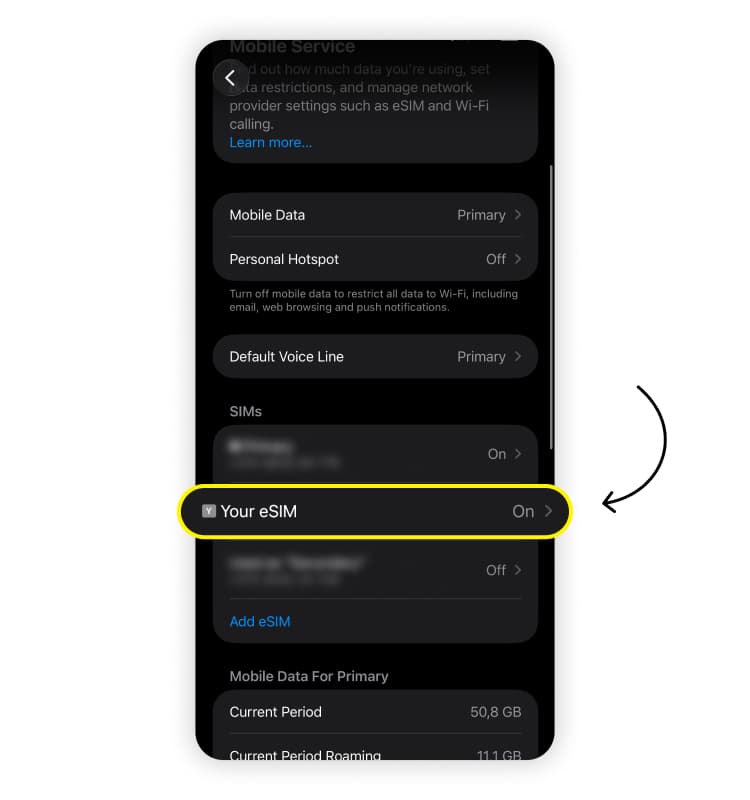
Tap the eSIM you want to fix under the "SIMs" section.
Tap "Delete eSIM" (or "Remove cellular plan").
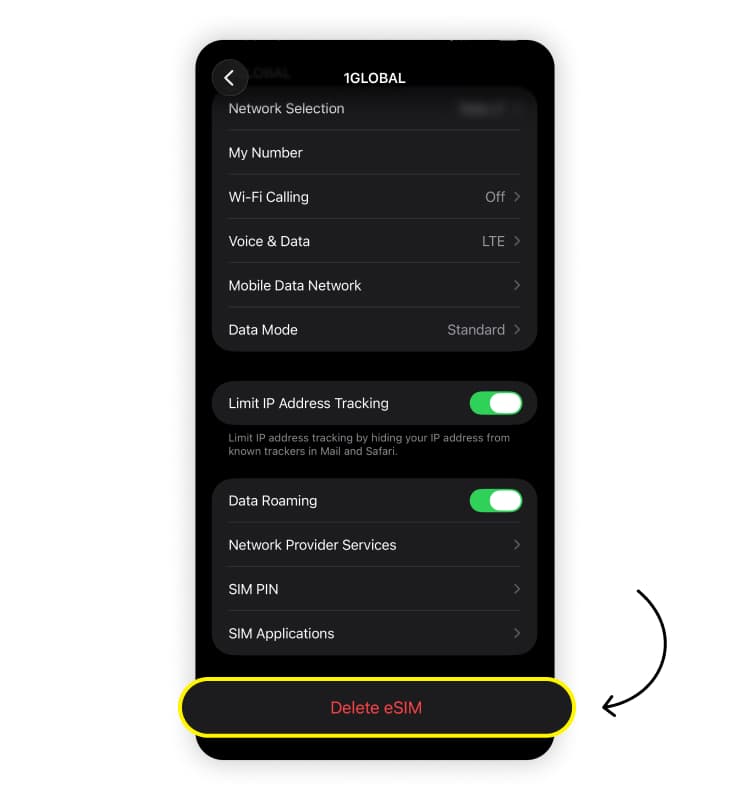
Confirm by tapping "Delete eSIM" again.
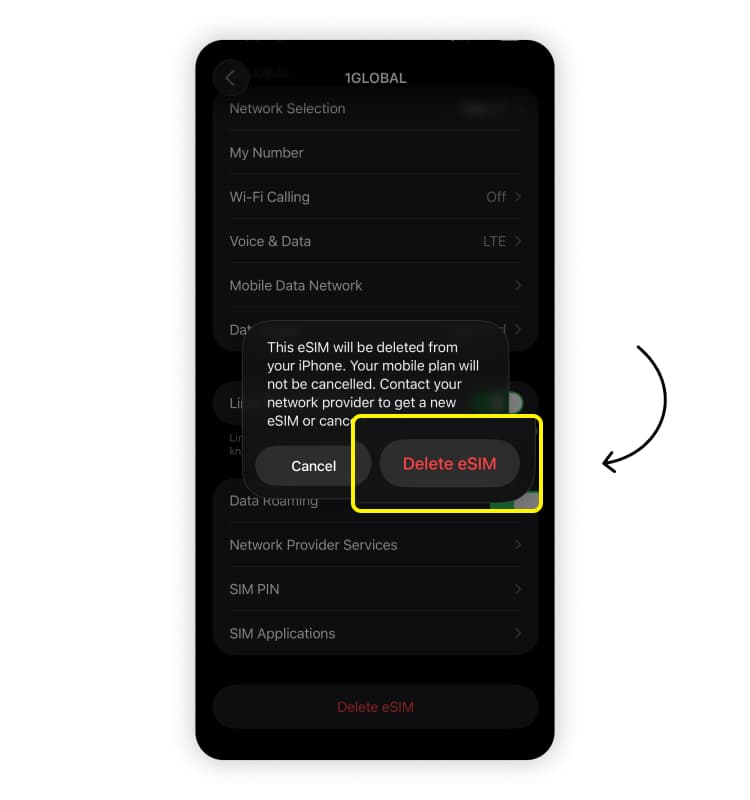
The profile is now gone from your device. You have successfully removed the corrupted data, paving the way for a fresh install!
How to reinstall an eSIM after resetting it on an iPhone
Now you simply bridge the connection again. With the old profile gone, use these steps to get back online.
Stay connected to Wi-Fi.
Return to “Settings” and tap “Cellular” or “Mobile data.”
Tap “Add eSIM” (or “Add Cellular Plan”).
Select “Use QR Code.”
Scan the code from your carrier or enter the details manually.
Label your plan when prompted (e.g., “Travel” or “Saily”).
Wait a moment for the activation to complete.
Connection usually restores instantly. Your phone will latch onto the local network, and those connection bars will hopefully turn solid!
What to do if the eSIM is not working on an iPhone after resetting it
If you still see “No service,” don’t worry. A few simple tweaks usually push the connection over the finish line.
Cycle airplane mode: Turn Airplane Mode on, count to 10, and turn it off. This forces the antenna to search for the strongest tower.
Toggle the line: Go to “Settings” > “Cellular” or “Mobile data,” tap your eSIM, and toggle “Turn on this line" off and back on.
Check the roaming status: Ensure "Data roaming" is on. Most travel eSIMs need this to function.
Check the carrier status: Phones bought from a service provider may have an eSIM lock. You can learn how to remove it in our guide on unlocking an eSIM on iPhone.
Update iOS: Keeping your operating system current ensures optimal compatibility with local networks.
Persistence pays off here. One of these triggers usually forces the iPhone to re-authenticate and grant you access to the data you paid for.
Can you factory reset an iPhone without losing the eSIM?
Yes, you can absolutely wipe your phone for a fresh start while keeping your internet connection safe.
A factory reset returns your device to its original state, deleting apps and photos. However, Apple includes a smart feature to protect your connectivity.
When you start the reset (“Settings” > “General” > “Transfer or reset iPhone” > “Erase all content and settings”), the system asks you to choose:
Delete eSIMs and erase data: This wipes everything clean.
Keep eSIMs and erase data: This clears your personal data but keeps your cellular profiles intact.
Select the second option. Your phone will reboot feeling brand new, but your data plan will be ready to use immediately.
Why trust Saily for your eSIM needs
Travel should be about the destination, not the settings menu. You expect the internet to work the moment you land.
Saily makes that happen. With robust coverage in over 200 destinations and a support team that knows iPhone connectivity inside and out, we designed the app to remove barriers to connectivity so you can focus on the trip. Check out the benefits of an eSIM to see how we compare.
The bottom line is simple. You land, you get connected, and you adventure. Download an eSIM app that keeps up with your pace!

Need an eSIM app with 24/7 customer support?
Enjoy stress-free mobile data with Saily.