What does it mean when an Android phone is carrier-locked?
An unlocked Android phone can connect to any compatible network. You can swap SIM cards, use eSIMs from international carriers, and avoid being tied to one provider. This flexibility is especially useful if you’re traveling, since you can grab a local SIM or eSIM and skip expensive roaming fees.
By contrast, a carrier-locked phone is restricted to the operator that sold it. For example, a Samsung Galaxy bought from Verizon won’t work with a T-Mobile or AT&T SIM until it’s unlocked. Similarly, if you’re using a carrier-locked phone, you won’t be able to activate a new eSIM from a different network. You can still transfer an eSIM to a new Android phone though, as long as it’s from the original carrier (in this case, Verizon).
The difference between unlocked and locked devices comes down to choice: unlocked Android phones give you the freedom to move between carriers and plans, while locked phones limit your options until the provider agrees to release them.
Can you check if your Android phone is unlocked?
Yes — every Android device has ways to confirm its carrier lock status, and you don’t need special tools to find out. Carriers often impose these SIM locks to keep customers tied to contracts or installment plans, but once a device is paid off it can usually be unlocked. Knowing this difference helps you decide whether you’ll be able to swap to a new SIM card or activate an eSIM.
How to check if an Android phone is unlocked: 4 methods
Knowing how to check if your phone is unlocked is useful, especially when considering switching carriers or traveling abroad. What's also great is that checking if your Android is carrier-locked is a breeze and takes just a few seconds (the same as checking whether your iPhone is unlocked). Here’s how to do it using at least four different methods.
1. Check through phone settings
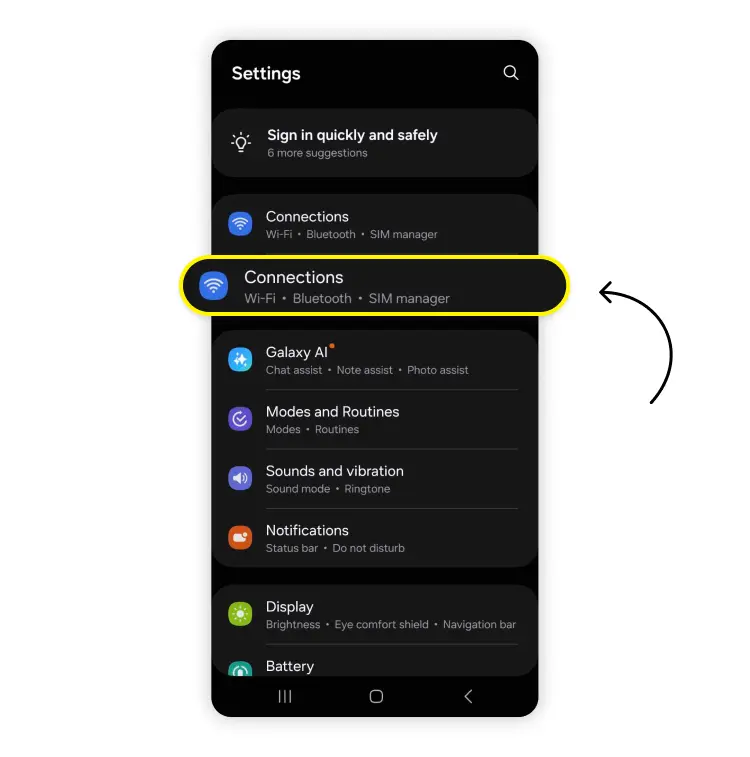
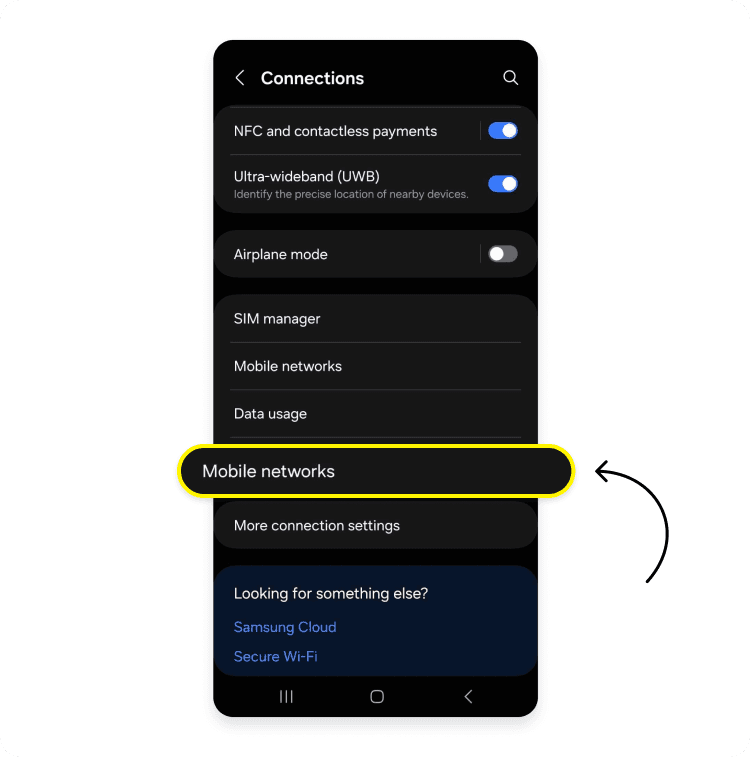
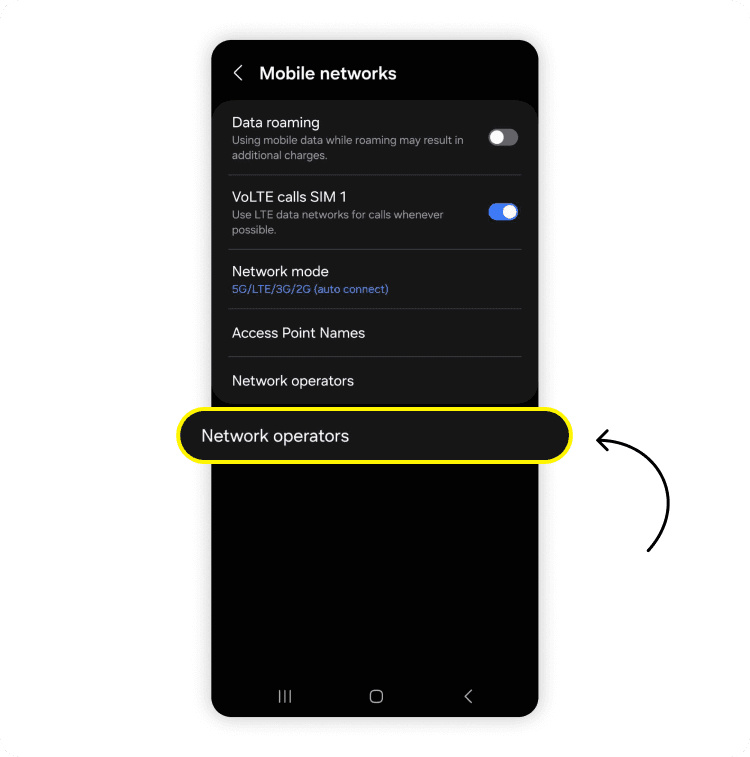
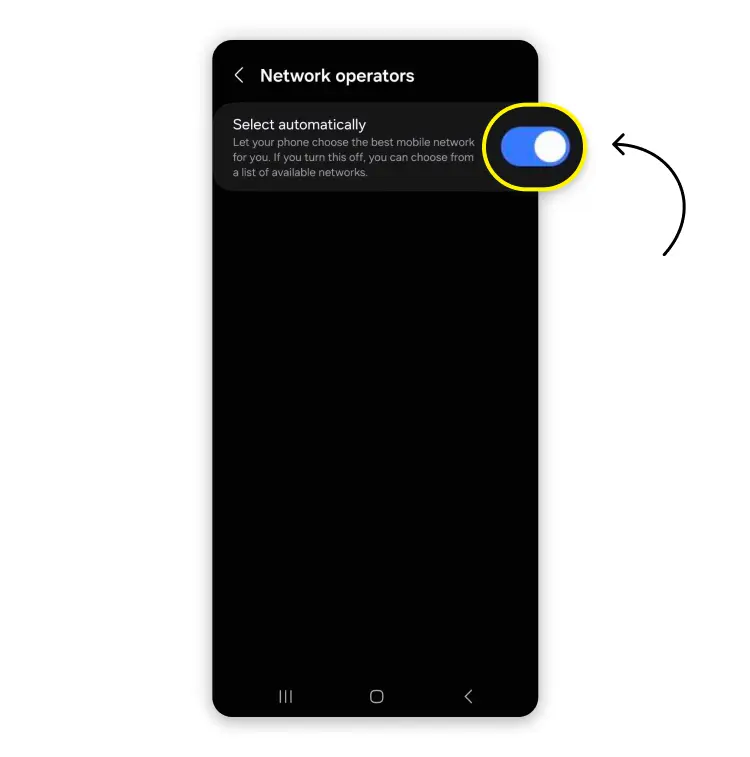
The easiest way to check whether your Android is unlocked is by picking up your phone and going to settings. From there, you should:
Go to “Connections.”
Choose “Mobile networks.”
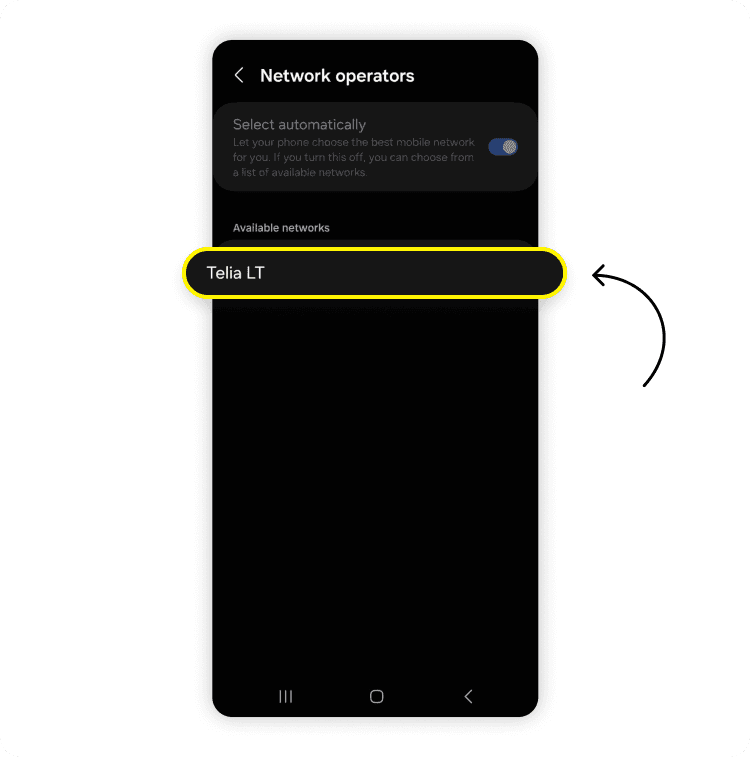
Navigate to “Network operators.”
Disable the “Select automatically” option. The device will then search for available networks. If multiple networks appear, the phone is likely unlocked. The phone may be carrier-locked if only the current carrier's network is displayed.
2. Test with a different SIM card
Another way to check whether your Android is carrier-locked is by manually switching your SIM card. While this method may be less convenient (and you can potentially damage your SIM card if you're not careful), it's still a valid option. You only need to power off the phone and remove the current SIM card. Then, switch it to an active SIM card from a different carrier and turn the phone back on. If you can call or text with the new SIM successfully, you have an unlocked phone. But if you receive an error message, encounter SIM restrictions, or a get prompt for an unlock code, the phone is carrier-locked.
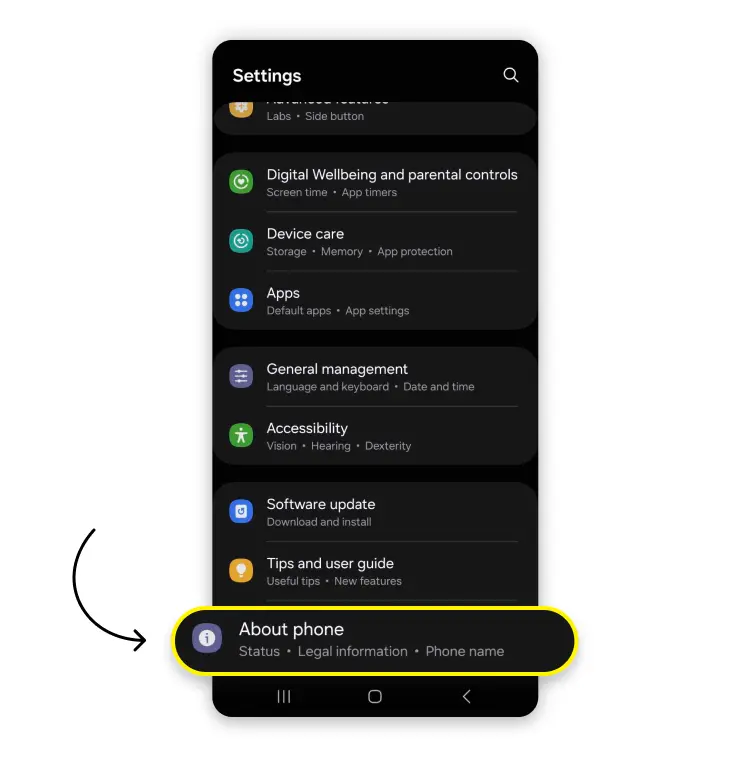
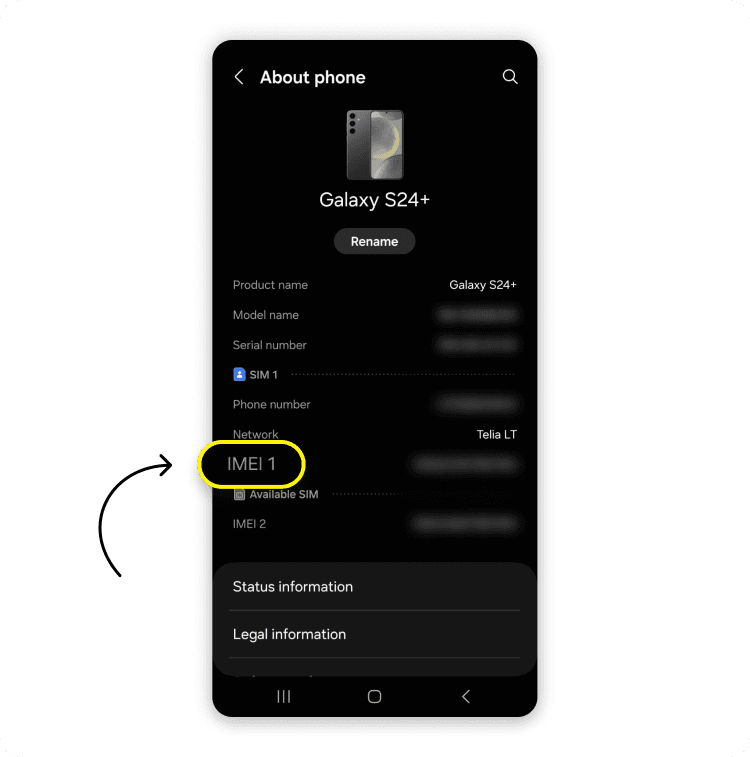
If you don't want to tinker with SIM card slots or wander through your Android settings, you can also reach out to the current carrier's customer service. The service will ask you to provide your phone's IMEI number and will confirm whether the device is locked (and provide you with the steps to unlock it). You can find your Android's IMEI number by going to your device's settings and tapping on "About phone."
4. Use online IMEI checkers
Finally, you can use online IMEI checkers to test whether your Android is carrier-unlocked. However, when doing so, be sure to avoid suspicious websites and use trusted and reputable sources only! Most online IMEI checkers (although cheap) are paid services, which may seem like unnecessary expenses. But they’re safer than using free IMEI checkers, which may expose you to cyber risks. So, use IMEI checkers with caution.
Key considerations about unlocked Android phones
Having a carrier-locked Android device may urge some users to unlock it ASAP. However, before doing so, make sure you've thought it through. Carrier-locked phones may have certain contractual conditions or features that may be broken or lost upon unlocking the device. So here are some key questions and considerations regarding unlocked Android phones.
When can you unlock your phone under a carrier’s contract?
The carrier can unlock your phone upon your request after you've fulfilled the contract terms or fully paid off the Android device bought from the same carrier. Exceptions may apply if you're an active duty military member, but you must provide deployment documentation before requesting for unlock. In addition, some carriers may require you to wait a certain period (typically 40-60 days) before unlocking your phone.
Factory unlocked phones
If you purchase your Android phone directly from a manufacturer or authorized retailer, your device will likely be factory unlocked. That means you won’t need to do any unlocking. However, it’s super important to verify the unlock status before purchasing, because sometimes the phones may be sold as part of a carrier deal (especially if it’s a third-party seller).
Legal and warranty implications
If you choose to unlock your Android phone through unauthorized methods (such as using certain third-party services), you may void warranties or violate terms of service. So before unlocking your phone, check the official procedures and follow them to avoid losing your device’s warranty.
How can you carrier-unlock your Android phone?
You can use at least a few ways to carrier-unlock your Android phone. These include:
Contacting the carrier and requesting the unlock.
Contacting the phone’s manufacturer and asking for assistance (limited availability).
Using a third-party service (may void warranty).
Using an unlocking app (limited to specific carriers and devices).
You can also use more extreme methods, such as hardware unlocking or buying SIM codes online. However, these methods pose a risk of damaging the phone, falling for scams, violating terms and conditions, and voiding warranties, so you'd be better off avoiding them.
Do you need an unlocked Android phone to use an eSIM?
If you want to use an eSIM card for Android, you will need an unlocked phone if the eSIM you want to use comes from a different carrier than your current one. A locked device can prevent you from activating a new profile, limiting your options when traveling or switching providers.
Unlocking your Android phone gives you access to cheaper and more flexible eSIM options. It also means you can take advantage of the many benefits of an eSIM, like instant setup, multiple profiles on one device, and better connectivity in different countries.
While your current carrier may already provide an eSIM option, unlocking your phone expands your choices. For example, if you’re traveling abroad and your provider doesn’t cover your destination, you can use Saily, a pocket-friendly eSIM service with coverage in 200+ destinations. Whether you’re posting photos, using maps, or making calls over data, an unlocked Android gives you more freedom than sticking with one provider’s limited plans.