
How to activate an eSIM on an Apple Watch. Set up, use, and manage Apple Watch eSIM features
Activating an eSIM on an Apple Watch transforms your wearable from a simple companion into a fully independent communication powerhouse that handles calls, texts, and music directly from your wrist. This guide provides a comprehensive walkthrough for setting up, using, and managing your Apple Watch eSIM features to ensure you never miss a beat even when your iPhone stays at home. You will discover which models support this technology, how to troubleshoot common connection issues, and whether the added monthly cost fits your lifestyle.

Table of Contents
- What is an eSIM for an Apple Watch?
- Why use an eSIM on an Apple Watch?
- Benefits of an eSIM-capable Apple Watch
- Things to consider before buying an eSIM-compatable Apple Watch
- How to activate an eSIM on your Apple Watch
- Step 1: Pair your Apple Watch with an iPhone
- Step 2: Set up Cellular Data on your Apple Watch
- Step 3: Verify cellular connection
- How to identify a cellular Apple Watch
- How to delete an eSIM from your Apple Watch
- How to transfer an eSIM to a new Apple Watch
- Common Apple Watch eSIM setup issues and how to solve them
- How much does an eSIM cost for an Apple Watch?
- Saily and Apple Watch eSIMs: What travelers need to know
- So, is an Apple Watch eSIM worth it?
What is an eSIM for an Apple Watch?
An eSIM for an Apple Watch is a built-in cellular chip that connects your wearable directly to a mobile network without a physical SIM card. This digital technology allows your watch to function independently, so you can stay connected to data and cellular services even when your iPhone isn’t nearby.
Why use an eSIM on an Apple Watch?
Enabling cellular service on your Apple Watch transforms how you interact with your technology. It removes the tether to your iPhone and provides a layer of freedom for athletes, travelers, and commuters alike. While the benefits of an untethered experience are significant, you should consider a few practical factors before committing to a cellular plan for your Apple Watch.
Benefits of an eSIM-capable Apple Watch
Using an eSIM offers several advantages that enhance the utility of your wearable device. The benefits of an eSIM allow the watch to step out of the shadow of your iPhone and become a primary communication tool.
True independence: Take calls and send messages directly from your wrist while your iPhone stays at home or in another room.
Seamless streaming: Stream your favorite running playlists or podcasts during workouts without needing a secondary device for playback.
Contactless convenience: Use Apple Pay at markets or cafes even when your hands are full and your phone is nowhere near.
Emergency connectivity: Access help and emergency services during outdoor activities like hiking or running to provide peace of mind in remote areas.
Travel flexibility: Stay connected while traveling without worrying about your phone’s battery life or carrying multiple devices during sightseeing.
Picture yourself walking through your neighborhood. Your iPhone has stayed behind at home, but a call from your boss lights up your wrist. You don’t even break stride — you flick your wrist, dismissing the notification like it’s a stray leaf in your path. Or you’re at the farmers market, holding bags of produce, and pay with a tap of your watch. It feels natural, almost invisible, as if the tech has stepped out of the way while still keeping you connected.
Things to consider before buying an eSIM-compatable Apple Watch
While the convenience of a watch with cellular connectivity is undeniable, you must weigh the practical trade-offs involved in actually using it.
Monthly fees: Most carriers require an additional monthly service fee to add a watch to your existing cellular plan.
Battery consumption: Using cellular data directly on the watch drains the battery significantly faster than a Bluetooth connection to an iPhone.
Initial hardware cost: GPS + Cellular models of the Apple Watch generally have a higher upfront purchase price than GPS-only versions.
Carrier compatibility: Not all mobile providers support Apple Watch eSIM technology so you must verify your specific plan compatibility beforehand.
Evaluating these factors will help you determine if the added costs and battery demands align with your daily habits.
How to activate an eSIM on your Apple Watch
Before going through the steps of setting up an eSIM on your Apple Watch, let’s talk about what you need to have ready. This process isn’t complicated, but it does require a few essentials:
An eSIM-compatible iPhone running the latest version of iOS.
An Apple Watch (Series 3 or later, or an Apple Watch Ultra) with GPS + Cellular capability.
A carrier plan that supports eSIM activation for Apple Watch.
It’s also worth making sure your iPhone already has its eSIM working properly. If you’re unsure, check out our guide on how to install an eSIM on an iPhone for a quick refresher. A solid iPhone setup lays the groundwork for getting your watch connected too.
Now let’s walk through the setup process step by step.
Step 1: Pair your Apple Watch with an iPhone
Pairing your Apple Watch to your iPhone is the first step in unlocking its cellular power.
Open the Apple Watch app on your iPhone.
Tap start pairing and align your watch in the camera viewfinder if prompted.
Choose whether to restore from a backup or set up as a new watch.
If you’re wondering whether your iPhone’s eSIM is active and ready to pair — check if an eSIM is activated on your iPhone. Having this information will ease your way moving forward.
Once paired, your Apple Watch is connected to your iPhone and ready for cellular setup.
Step 2: Set up Cellular Data on your Apple Watch
This is where the magic happens — your watch becomes independent from your phone.
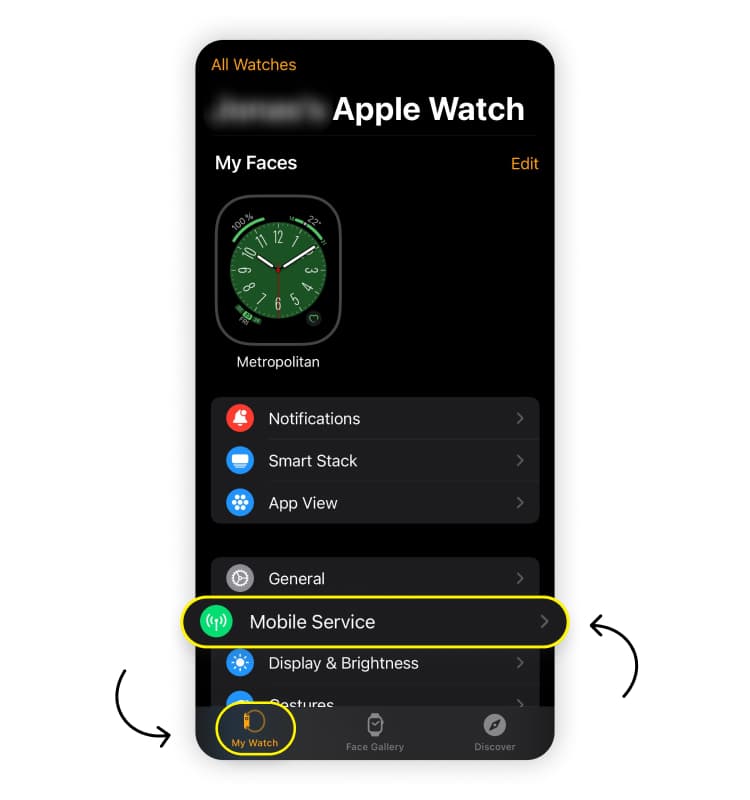
In the Apple Watch app, go to the “My watch” tab and tap “Cellular” or “Mobile service."
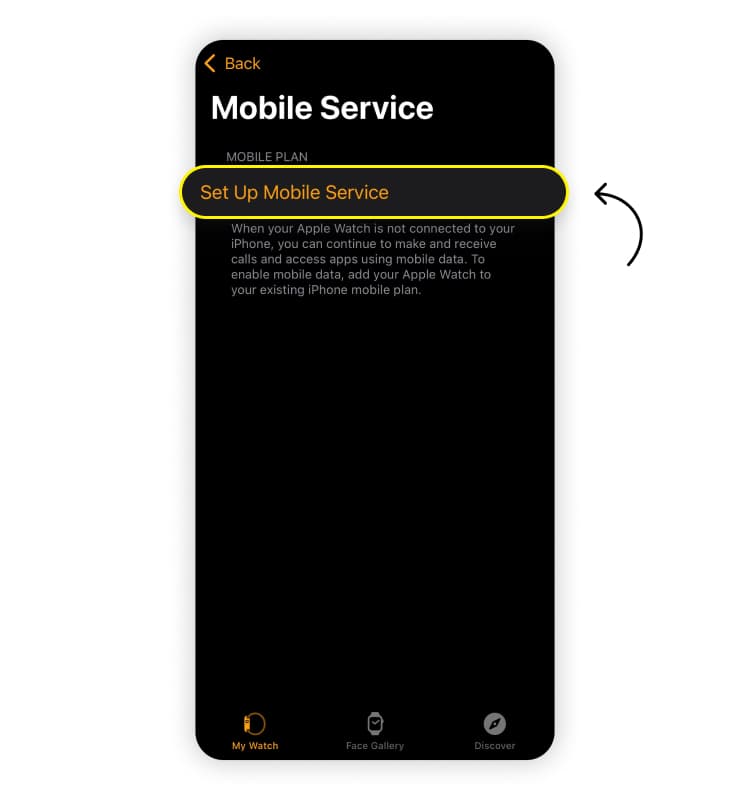
Tap “Set up cellular” or “Set up mobile service.”
Follow the onscreen steps provided by your carrier. This may include logging in to your account and confirming your plan details.
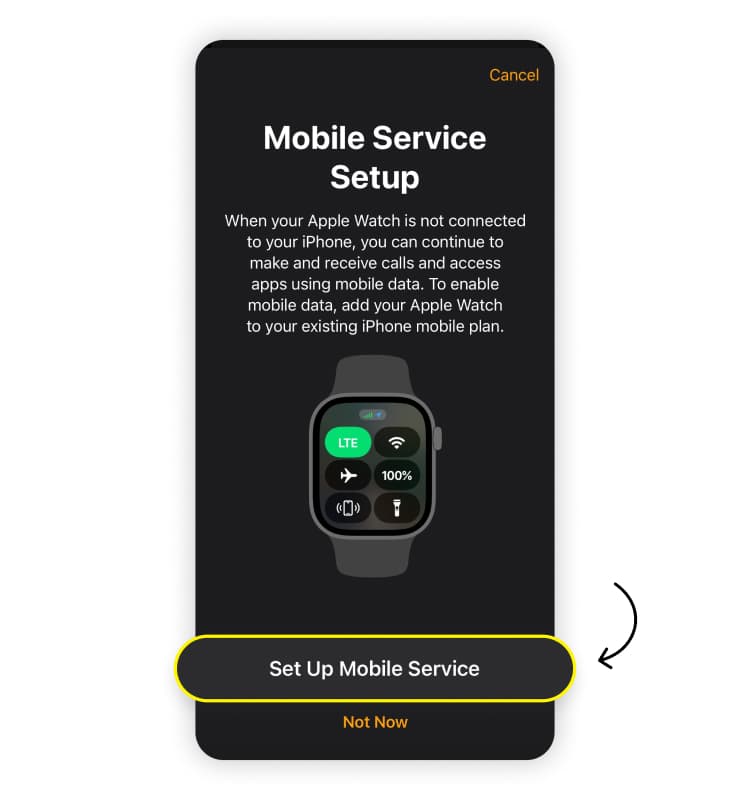
The setup process might take a few minutes while your carrier provisions the eSIM. Be patient. It’s like watching paint dry — boring, but worth it in the end.
Step 3: Verify cellular connection
Now let’s confirm everything’s working:
On an Apple Watch running watchOS 10 or later, press the side button to open the control center.
On older versions of watchOS, swipe up from the bottom of the watch face.
Look for the cellular icon. A green icon means your watch is connected to the network. A white icon means it’s ready but currently relying on Wi-Fi or your iPhone.
When you see that green signal, your Apple Watch is officially ready to handle calls, messages, and apps independently.What Apple Watch models support eSIMs?
Not all Apple Watch models are created equal when it comes to staying connected. Only certain models offer cellular connectivity through an eSIM. Here’s how to know if yours makes the cut:
Apple Watch Series 11, Series 10, and Series 9: These flagship models require the GPS + Cellular version for eSIM use.
Apple Watch Series 3 through Series 8: Older versions from 2017 onwards also support cellular service in their specific GPS + Cellular configurations.
Apple Watch Ultra 3, Ultra 2, and Ultra: All generations of the Ultra series come standard with eSIM support.
Apple Watch SE 3, SE 2, and SE: Every iteration of the SE line offers cellular-ready versions.
If you are curious about which mobile devices offer this digital SIM technology beyond the watch, you can explore our guide on iPhones with eSIM functionality for a complete list of compatible handsets.
How to identify a cellular Apple Watch
There are several ways to verify if a specific Apple Watch is equipped with eSIM functionality. The most reliable method is a quick software check within the interface. On an Apple Watch running watchOS 10 or later, press the side button to open the control center and look for the cellular icon. If you are using an older version of watchOS, swipe up from the bottom of the watch face to find this menu.
You can also perform a visual inspection of the hardware. Many cellular models, such as the Apple Watch Series 11 or the original Apple Watch SE, feature a distinctive red dot or ring on the crown. This subtle detail signifies that the Apple Watch is capable of connecting to a cellular service. If you encounter any technical hurdles during this inspection or the subsequent pairing, you can refer to our guide on what to do if your iPhone eSIM is not working to troubleshoot common connectivity issues.
How to delete an eSIM from your Apple Watch
There may come a time when you might need to clear your Apple Watch’s eSIM. Maybe you’re upgrading, switching carriers, or handing it down to a family member. Here’s how to do it cleanly and avoid any surprise charges:
On your iPhone, open the Apple Watch app.
Go to the “My watch” tab and tap “Cellular.”
Tap the “i” icon next to the cellular plan you want to remove.
Select “Remove (your carrier's name here) plan” and confirm your choice.
This action wipes the eSIM profile from your Apple Watch. It’s like handing over a clean slate to the next owner or preparing your watch for its next adventure with a new plan.
How to transfer an eSIM to a new Apple Watch
Upgrading to a new Apple Watch means your cellular connectivity doesn’t have to skip a beat. When you unpair your old watch, your iPhone will ask if you want to keep your current cellular plan. Be sure to select “Keep plan” so all the necessary details remain tied to your phone.
Next, pair your new Apple Watch:
Open the Apple Watch app on your iPhone and start pairing.
Go to “My watch” > “Cellular” or “Mobile service.”
Tap Set up cellular and follow your carrier’s onscreen steps to activate the plan.
If the plan doesn’t transfer automatically, contact your carrier for assistance. They’ll update the details on their end to restore full cellular connectivity.
In just minutes, your new Apple Watch will be ready to make calls, send texts, and receive notifications without your phone nearby.
Common Apple Watch eSIM setup issues and how to solve them
When your Apple Watch cellular is not working, the cause usually stems from a software glitch, a carrier account restriction, or a simple configuration error. You might find that your watch fails to connect even when the hardware is compatible. Common reasons for this failure include outdated watchOS versions, being in a cellular dead zone, or having a data cap on your mobile plan that restricts secondary devices.
If you encounter hurdles during the installation, you can take these steps to troubleshoot and resolve the most frequent Apple Watch eSIM issues.
The eSIM is not being recognized by the Apple Watch: Restart both devices. Power off your iPhone and your Apple Watch simultaneously and then turn them back on. This action often forces the devices to re-establish a handshake connection and recognize the digital SIM profile.
Activation has failed or is taking too long: Check the Wi-Fi connection. Ensure both your iPhone and watch are connected to a stable Wi-Fi network during the activation process. If the status stays on “Activating” for more than ten minutes, toggle airplane mode on and off to reset the network search.
“Unable to add plan” error: Verify carrier compatibility. Confirm with your mobile provider that your specific plan supports wearable add-ons. Some prepaid or corporate accounts do not allow Apple Watch eSIM activation without a specific feature enabled by the account administrator.
No cellular signal icon: Toggle Bluetooth. Sometimes the watch stays tethered to the iPhone via Bluetooth even when you want it to use cellular. Turn off Bluetooth on your iPhone temporarily to force the watch to switch to its own eSIM connection and verify the green signal dots appear.
Carrier settings update required: Update the iPhone software. Navigate to “Settings” > “General” > “About” on your iPhone. If a carrier settings update is available, a prompt will appear automatically. Installing this update ensures your phone has the latest instructions for provisioning watch eSIMs from your carrier.
By following these steps, you can typically resolve connectivity problems without needing to visit a service center or call technical support.
How much does an eSIM cost for an Apple Watch?
Service providers typically charge a monthly subscription fee rather than a one-time purchase price for an Apple Watch eSIM. Most major carriers in the United States set this recurring cost at around US$10 per month. This monthly payment enables your watch to share the same phone number and data pool as your iPhone, which ensures you remain reachable even without your handset.
While the monthly subscription covers your data usage, you should also account for potential one-time costs because some carriers charge an activation fee. Look for promotions that waive these monthly fees if you subscribe to a high-tier unlimited smartphone plan. Pricing varies by carrier and country, so you must check with your specific provider for the exact costs of adding a wearable to your account.
Saily and Apple Watch eSIMs: What travelers need to know
Saily offers data-only eSIMs for iPhones, making it easy to skip roaming fees and stay connected wherever life takes you. But there’s an important distinction: Saily does not offer an eSIM for Apple Watch. This isn’t a limitation of Saily, since Apple Watch eSIMs rely on your phone number and are configured through your mobile network provider.
If you want to enable Apple Watch cellular features like making calls, sending messages, and receiving notifications without your iPhone nearby, you’ll need to contact your carrier. It will help set up a compatible plan and activate it on your watch.
Saily remains an excellent solution for iPhone users, offering eSIM plans for over 200 destinations. And while your Apple Watch can’t use a Saily eSIM directly, it will still piggyback on your iPhone’s connection when within Bluetooth range for any feature that needs mobile data. Plus, if you enable a personal hotspot on your iPhone, your Apple Watch can stay connected over Wi-Fi as well!
To make sure your iPhone is fully ready for international travel, read our guide to using iPhones internationally.
So, is an Apple Watch eSIM worth it?
Yes, an Apple Watch with an active eSIM provides value for people who want to maintain a connection without carrying a smartphone. The independent link is ideal for outdoor enthusiasts like runners or hikers who need to remain reachable during workouts. People attempting to curb their screen time also find a secret weapon in the wearable. You can stay reachable for urgent calls and texts while dodging the bottomless pit of social media apps on your iPhone.
Of course, the sort of freedom an Apple Watch with cellular connectivity offers comes with a few strings attached. A cellular connection draws more power than a standard Bluetooth link, and that higher power consumption reduces the total uptime of the device. You also have to account for a recurring monthly service fee from your carrier. If the joy of leaving your phone on the charger outweighs the slightly shorter battery life of your watch and a small monthly bill, an eSIM for an Apple Watch is a worthy investment.

Need an eSIM app with 24/7 customer support?
Enjoy stress-free mobile data with Saily.
FAQ


Related articles